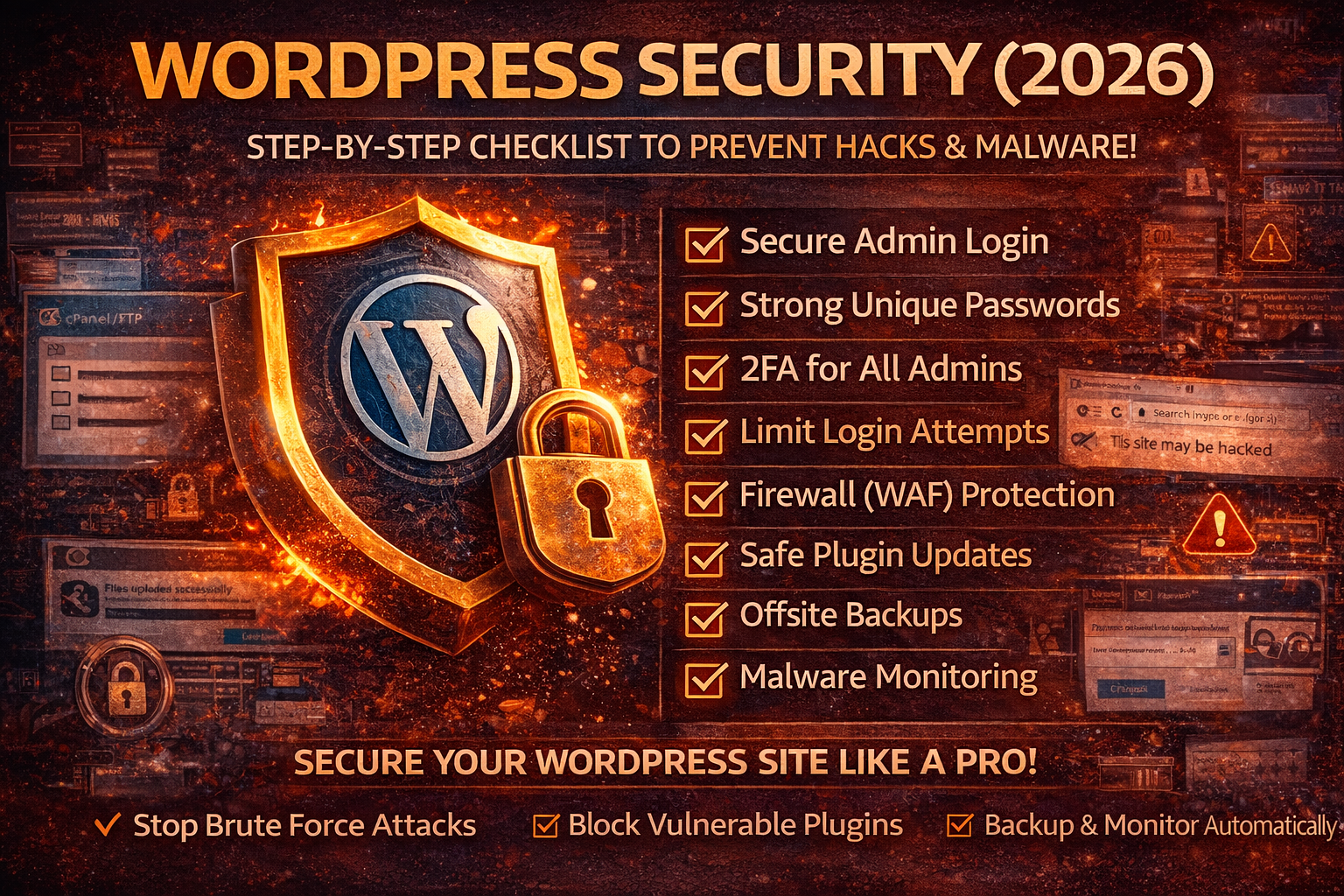
WordPress Security (2026): The Ultimate Step-By-Step Checklist to Stop Hacks and Malware
WordPress is not “insecure by default.” It’s targeted because it’s popular—and because most sites run the same predictable weak points: outdated plugins, weak admin access, exposed login pages, insecure hosting settings, and missing backups. Attackers don’t sit and “choose your website.” Bots scan the internet 24/7, find easy targets, and compromise them at scale.
If your website earns money, brings clients, ranks on Google, or represents your brand, WordPress security is not optional. The good news: you don’t need complex coding. You need a proper hardening system admin protection, update discipline, plugin hygiene, server controls, firewall, and backups. This guide gives you that system in detail.
Why WordPress Sites Get Hacked
Most WordPress compromises happen through one of these routes:
1) Vulnerable plugins and themes
The #1 source of WordPress hacking is plugin vulnerabilities—especially old, abandoned, or “nulled” (pirated) plugins. One vulnerable plugin can allow file upload, admin takeover, database theft, or full remote code execution.
2) Brute-force login attacks
Bots constantly hit /wp-login.php and /wp-admin/ trying leaked credentials, common passwords, and brute-force attempts. Even if they don’t succeed, they can overload server resources and slow your site.
3) Credential theft (stolen passwords)
If you reused your admin password anywhere and it was leaked in a breach, attackers can take over WordPress using credential stuffing. This is why “strong passwords” must also be unique passwords.
4) Infected devices and session theft
If your laptop/browser is infected (infostealer malware) or you installed a malicious extension, attackers can steal saved passwords and session cookies. That can lead to WordPress admin takeover even if you think “nobody knows my password.”
(Internal link idea: your articles on Infostealer Malware, Session Hijacking, and Credential Stuffing.)
5) Weak hosting and bad file permissions
Insecure server settings, writable directories, old PHP versions, and wrong permissions let attackers plant malware and persist.
6) No backups (so recovery becomes disaster)
Many site owners only think about security after a hack—and then realize they can’t restore. No backup means: downtime, lost rankings, lost trust, and expensive cleanup.
Signs Your WordPress Site Is Hacked (Don’t Ignore These)
If you see any of these, assume compromise until proven otherwise:
- Visitors get redirected to spam, gambling, adult, or “virus detected” pages
- Strange popups appear on mobile only (common malware behavior)
- New admin users appear that you did not create
- Unknown plugins/themes installed
- Your site becomes slow, CPU spikes, hosting sends abuse warnings
- Google Search Console shows “This site may be hacked” or malware warnings
- Your pages deindex or rankings drop suddenly
- You see unknown files in
wp-content/uploads/(especially.phpfiles) - Your site starts sending spam emails
- Your homepage content changes or links to pharmacy/casino keywords appear
If any of these happen, jump to the Emergency Cleanup section near the end after you finish the prevention steps (you’ll need them anyway).
Step 1: Lock Down Admin Access (The Highest Impact Area)
1) Stop using “admin” as a username
Attackers already know to try “admin,” “administrator,” or your website name. If your admin username is predictable, bots only need to guess the password.
Best fix (safe approach):
- Create a new administrator account with a unique username (not your brand name).
- Log in with the new admin.
- Downgrade or delete the old admin user.
This reduces brute-force success instantly.
2) Use strong unique passwords for every admin/editor
WordPress gets hacked often because of password reuse. A password can be “strong” but still unsafe if reused.
A secure WordPress admin password should be:
- Unique (never used anywhere else)
- Long (16–24 characters recommended)
- Stored in a password manager
If you’ve ever used the same password on email, social media, or other sites, change it immediately.
3) Enable 2FA for WordPress admin (non-negotiable in 2026)
Two-factor authentication blocks logins even if attackers get your password.
Enable 2FA for:
- Administrators (always)
- Editors (if they can publish)
- WooCommerce Shop Managers
- Anyone with plugin/theme/settings access
Best 2FA methods:
- Authenticator app (TOTP)
- Passkeys (if supported by your stack/plugins)
- Hardware keys for high-value sites (optional)
Avoid SMS 2FA when possible.
4) Limit login attempts (kills bot attacks)
By default, WordPress allows unlimited login tries. That’s a gift to bots.
You want:
- Rate limiting (slow down repeated attempts)
- Temporary lockouts after failures
- IP blocking for abusive patterns
This prevents brute force and also protects your server from login traffic spikes.
5) Protect wp-admin and wp-login (reduce attack surface)
Bots target:
/wp-login.php/wp-admin/
You can make life much harder for them using one (or more) of these:
- Change the login URL (security plugin feature)
- Add CAPTCHA to login (helps, but not perfect alone)
- Require an extra password layer on
/wp-admin/(basic auth) - Allow admin access only from your IP (best for teams with stable IPs)
Even a simple login URL change reduces automated attacks dramatically.
Step 2: Fix the Real Vulnerability Factory (Plugins & Themes)
6) Delete unused plugins and themes (don’t just deactivate)
Deactivated plugins still sit on your server. If a plugin has a known vulnerability, attackers can exploit it even if you’re not “using” it—depending on the flaw.
Do this:
- Delete every plugin you don’t need
- Delete unused themes (keep only: your active theme + one default theme as fallback)
Fewer components = fewer vulnerabilities.
7) Never use nulled/pirated plugins or themes
This is one of the fastest ways to get hacked. Nulled plugins commonly include:
- hidden backdoors
- admin creation scripts
- spam link injection
- remote command execution stubs
If your site matters, treat paid plugins as a business cost.
8) Replace abandoned plugins before they become your breach
A plugin can become dangerous even without a public exploit today.
Red flags:
- No updates in a long time
- Developer support is dead
- Many unresolved security complaints
- Plugin requests excessive permissions or file access
Replace it with an actively maintained alternative.
9) Use safe update strategy (rank-safe + security-safe)
Updates patch vulnerabilities—but uncontrolled updates can break sites. The solution is a routine:
Recommended approach:
- Enable auto-updates for minor security patches
- Do weekly updates for plugins/themes
- If ecommerce/high traffic: test on staging first
- After updating: quick check homepage, checkout/contact forms, login
Most hacked WordPress sites were hacked because updates were ignored for weeks/months.
Step 3: Harden WordPress Core Settings (Quick Wins That Matter)
10) Disable file editing inside WordPress dashboard
WordPress allows editing theme/plugin files from the admin panel. If an attacker gets admin access, they can inject malware instantly.
This one setting reduces damage potential massively.
11) Turn off debugging on production
Debug mode can expose:
- file paths
- database errors
- plugin details
- stack traces
Use debug only on staging/dev, never on a live site.
12) Protect critical files (wp-config and backups)
Your wp-config.php contains database credentials and secret keys. Also protect:
.htaccesswp-config.php- any backup files (
.zip,.sql,.tar.gz)
A common mistake is keeping backups in a public directory or inside the site root where they can be downloaded if discovered.
Step 4: Secure Hosting (Where Real Malware Persistence Happens)
13) Force HTTPS everywhere (site + admin)
HTTPS protects sessions and prevents credential interception.
Make sure:
- WordPress Address and Site Address are HTTPS
- Redirect HTTP → HTTPS
- Admin pages run only on HTTPS
14) Fix file permissions (stop easy file write attacks)
Bad permissions make it easier for attackers to upload or modify malicious files.
Typical safe baseline:
- Directories:
755 - Files:
644 - Sensitive files (like
wp-config.php): more restrictive if hosting supports it
Avoid “777” permissions—this is a major security mistake.
15) Update PHP and isolate your site properly
Outdated PHP versions and shared hosting without isolation increase risk.
Minimum best practice:
- Use a supported PHP version
- Disable dangerous functions if possible
- Ensure each site has isolated users (avoid cross-site infection)
16) Disable XML-RPC if you don’t need it
XML-RPC is commonly abused for brute force and amplification attacks. If your site doesn’t need it (many don’t), disabling it reduces noise and risk.
17) Protect your database and admin panels
If your hosting panel (cPanel/DirectAdmin) or database access is compromised, WordPress follows.
- Use strong unique passwords for hosting logins
- Enable 2FA on hosting panel if available
- Restrict phpMyAdmin access if possible
- Avoid reusing WordPress admin credentials for hosting
Step 5: Add a Firewall and Malware Protection (The Layer That Blocks Attacks Before WordPress)
18) Use a Web Application Firewall (WAF) for real protection
A WAF blocks malicious traffic before it hits your site. It helps against:
- bots scanning your login
- known exploit patterns
- brute-force floods
- common injection attempts
This is one of the best ROI security upgrades for WordPress.
19) Install one strong security plugin (not 5)
A good plugin can provide:
- malware scanning
- file integrity monitoring
- login protection
- firewall rules (app-level)
- suspicious activity alerts
Choose one reputable plugin and configure it properly. Multiple overlapping security plugins can conflict and slow your site.
Step 6: Backups + Monitoring (So You Don’t Lose SEO and Revenue)
20) Automated offsite backups (your recovery insurance)
Backups must be:
- Automatic (daily, or more frequent for ecommerce)
- Offsite (not only on the same server)
- Tested (you can restore successfully)
Many site owners have “backups” that fail when needed. Test restore once.
21) Enable activity logging (to catch hacks early)
Activity logs tell you:
- who logged in
- what changed
- which plugin was installed
- when users were created or roles changed
This is critical for detection and forensic clarity.
22) Uptime + malware monitoring (protect rankings)
SEO damage often happens because hacks stay live for days.
Use monitoring so you’re alerted quickly when:
- site goes down
- redirects appear
- malware warnings happen
- pages change unexpectedly
Emergency: If Your WordPress Site Is Already Hacked
If you’re hacked, follow this exact order (this prevents reinfection and reduces SEO damage):
1) Put the site in maintenance mode (if visitors are at risk)
If you’re redirecting users or serving malware, pause public traffic while cleaning.
2) Change every password connected to the site
From a clean device, change:
- WordPress admin passwords
- Hosting panel password
- FTP/SFTP/SSH passwords
- Database password (update wp-config accordingly)
- Email accounts used for WordPress admin
If your email is compromised, attackers can regain access. Secure email first.
3) Remove unknown admin users and suspicious plugins
Go to Users:
- delete unknown admins
- reset passwords for all privileged accounts
Then plugins:
- remove any plugin/theme you didn’t install
- remove nulled plugins immediately
4) Scan and identify malicious files
Common malware locations:
wp-content/uploads/(especially.phpfiles)- theme files with injected code
- unknown “must-use” plugins (
mu-plugins) - strange cron jobs or scheduled tasks
- modified core files
5) Replace WordPress core with a clean version
A clean reinstall of core files is often safer than hunting every modified line.
6) Update everything and patch the entry point
Most reinfections happen because the original vulnerability remains:
- outdated plugin
- weak admin access
- exposed login with no rate limiting
- compromised hosting credentials
Fix the entry point, or you’ll be hacked again.
7) Add WAF + hardening immediately after cleanup
Clean without hardening = reinfection.
8) Recover SEO trust if Google flagged you
If you received malware warnings:
- clean fully
- verify in Search Console
- request review if needed
- monitor indexing and redirects
FAQs
Is WordPress secure in 2026?
Yes if you maintain it properly. Most hacks happen due to outdated plugins, weak admin security, and missing WAF/backups.
What is the best protection for WordPress?
The strongest combination is: unique passwords + 2FA + limited login attempts + WAF + timely updates + offsite backups.
Can WordPress get hacked even with a strong password?
Yes, if a plugin is vulnerable, the login page is brute-forced, or your device is infected (session theft/infostealer). Password strength alone is not enough.
How often should I update WordPress plugins?
Weekly is a good baseline. For high-risk plugins (security/ecommerce/forms), update faster when security patches are released.
About The Author




