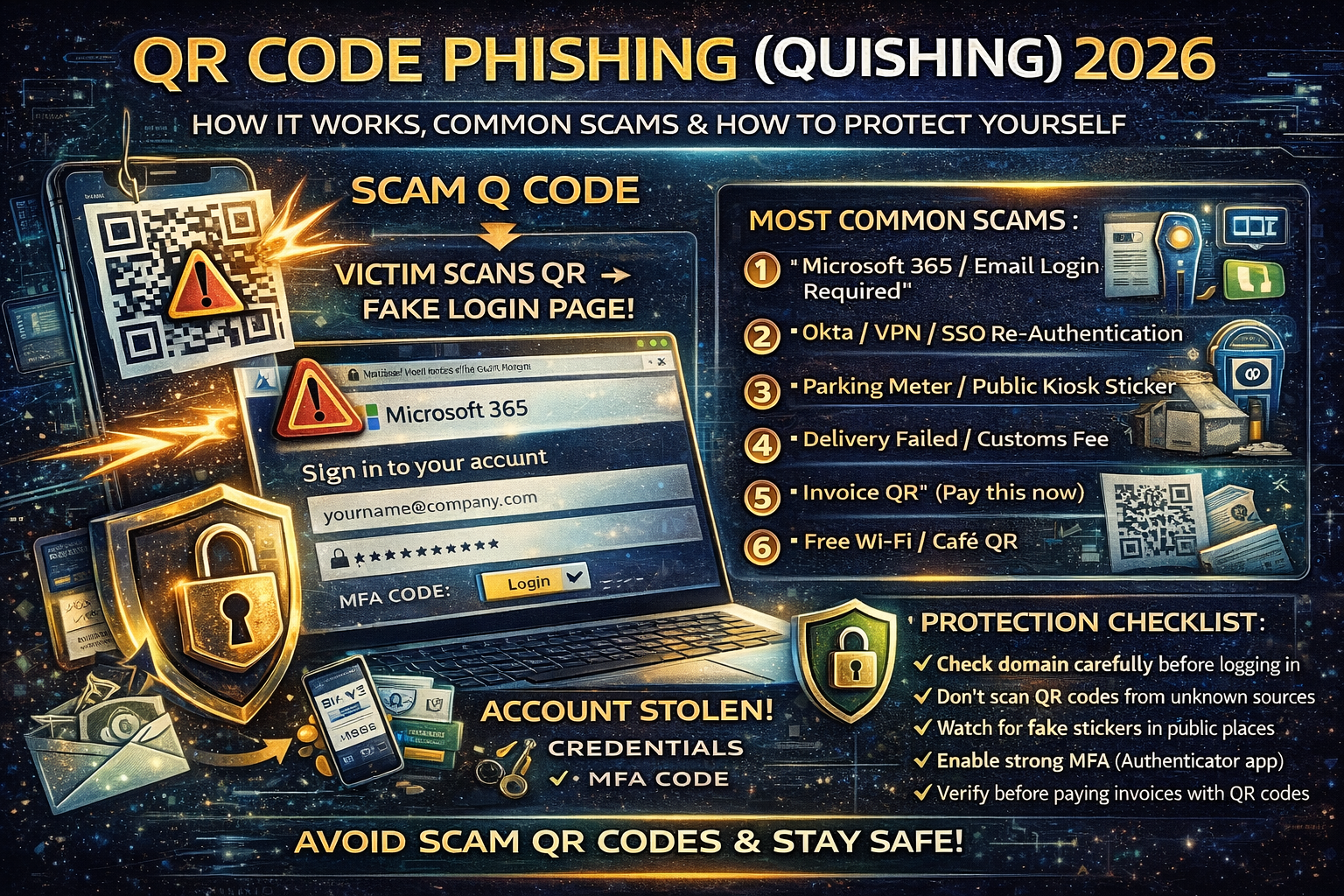
QR Code Phishing (Quishing) in 2026: How It Works, Real-World Scams, and How to Protect Yourself
QR codes are everywhere now restaurant menus, parking payments, event tickets, deliveries, even office logins. That convenience has created a perfect attack path for scammers: QR code phishing, also called quishing.
Quishing works because a QR code hides the real destination. You don’t see the link before you scan it, and most people scan QR codes on a phone often a personal phone with fewer security controls than a work laptop. Security filters also struggle more because the “link” may arrive as an image (in an email, flyer, or PDF), not a clickable URL.
This guide explains quishing step-by-step, shows the most common scam patterns, and gives you a practical protection checklist for personal users, businesses, and website owners.
What Is Quishing?
Quishing is a phishing attack that uses a QR code to send you to a malicious website usually a fake login page (Microsoft 365, Google, banking, social media, Okta/VPN portal), or a page that installs malware / steals session tokens.
Attackers like it because:
- QR codes hide the URL
- A QR code in an image can bypass some email/security filters
- Victims scan on mobile, where people check fewer details
- It’s easy to mass-produce (stickers, emails, posters, invoices)
Researchers have also noted a growing trend of stylized / “fancy” QR codes (colors, logos, customized patterns) designed to look more trustworthy and evade detection approaches that expect typical black-and-white QR patterns.
Why Quishing Is Trending in 2026
Quishing is no longer “small scams.” It’s being used in targeted spear-phishing campaigns and is repeatedly highlighted as an emerging technique because it can evade traditional link scanning and pushes the victim onto unmanaged devices.
At the same time, phishing operations are scaling fast using “phishing kits” and phishing-as-a-service models, making it easier for low-skill criminals to launch high-volume campaigns—including malicious QR lures.
How a Quishing Attack Works (Step-by-Step)
Step 1: The attacker places a QR code where you’ll trust it
Common delivery methods:
- Email “security update” with a QR code
- Fake invoice/payment notice with QR
- Printed QR sticker placed over a legitimate QR code (parking meter, table tent, kiosk)
- WhatsApp/Telegram message with a “verification QR”
- Fake HR document: “scan to view payslip”
- Event ticket / delivery confirmation QR
Step 2: You scan it
Your phone opens a website—sometimes instantly.
Step 3: The page pressures you to act fast
Typical lures:
- “Your account will be locked”
- “You must re-authenticate”
- “Payment failed scan to confirm”
- “You have a voicemail”
- “Document shared scan to view”
- “MFA reset required”
Step 4: You enter credentials (or approve MFA)
The attacker steals:
- Username + password
- MFA codes (real-time)
- Session tokens / cookies (in more advanced flows)
- Device details (fingerprint/identity data)
Step 5: Account takeover + follow-on fraud
After access:
- Inbox rules added (to hide bank-change emails)
- Password reset + recovery methods changed
- BEC/invoice fraud launched from the real mailbox
- Lateral movement to other accounts
The 7 Most Common Quishing Scams in 2026
1) “Microsoft 365 / Email login required”
Most common business-targeted lure. Fake sign-in pages steal credentials and sometimes attempt MFA bypass.
2) “Okta / VPN / SSO re-authentication”
Targets remote workers: “Scan to restore access.”
3) “Parking meter / public kiosk QR sticker”
Scammer places a sticker over the real QR code and sends you to a fake payment page.
4) “Delivery failed / customs fee”
Pushes you to “pay a small fee now,” then steals card details or credentials.
5) “Invoice QR” (pay this now)
Often used in finance departments—one scan and the “payment portal” is fake.
6) “Bank security check”
Classic phishing but with QR codes instead of clickable links.
7) “Free Wi-Fi / café QR”
Opens a captive portal clone that steals logins, emails, or pushes malicious profiles/apps.
Quishing Red Flags (Fast Checks That Save You)
If you scan a QR code and see any of these, close it immediately:
- The page demands login immediately with urgency
- Domain looks weird (extra words, hyphens, random subdomains)
- Shortened links with no context
- “Install this app / profile / certificate”
- MFA prompts you didn’t initiate
- The QR code is on a sticker that looks like it was placed over something else
- The page design looks right but the URL is wrong
Protection Checklist for Everyone
Before you scan
- Don’t scan QR codes from unsolicited emails or random messages.
- In public places: check if a QR code is a sticker placed over the original.
- Prefer typing the official website manually for banking/logins.
After you scan (before you do anything)
- Look at the full domain (not just the page design).
- If your phone shows a preview URL, read it carefully.
- If it asks for login, ask yourself: “Was I trying to log in right now?”
If you entered credentials on a suspicious page
Do this immediately:
- Change your password (from a clean device)
- Log out of all sessions (security settings)
- Enable MFA (authenticator app is best)
- Check recovery email/phone and remove unknown ones
- Review recent logins and remove unknown devices
- For work accounts: notify IT/security (fast response matters)
Business Defense: How to Stop Quishing Attacks in Your Company
1) Treat QR codes as “links”
Your security policy should explicitly say:
- A QR code is a link.
- Users must verify the destination.
- QR codes in email must be treated as suspicious.
2) Add mobile protections (this is where attacks land)
Quishing often succeeds because scanning happens on personal phones. You need:
- Mobile device management (MDM) where possible
- Managed browser / safe browsing controls
- Endpoint protection on mobile for corporate devices
This matters because QR-based spear phishing has been highlighted as dangerous specifically due to the shift toward unmanaged mobile scanning.
3) Train people on “behavior triggers,” not generic phishing
Your team should be trained to stop when:
- Payment details change
- Login prompts appear unexpectedly
- “Scan to verify” is used with urgency
- MFA appears when they didn’t start a login
4) Use phishing-resistant MFA for high-risk accounts
Executives, finance, admins: stronger MFA options reduce damage from stolen credentials and real-time phishing flows.
5) Monitor for inbox rule abuse (BEC prevention)
Quishing is often step one; invoice fraud comes next.
If you haven’t already, you should also read your own BEC guide and implement the payment verification controls
If You Run a Website: How Quishing Can Hit Your Users (and Your Brand)
Attackers may copy your brand, logo, and support pages to make their QR landing pages look real.
To protect your users:
- Publish a short “How we send links” policy (official domains only)
- Use DMARC/SPF/DKIM to reduce spoofing
- Put a warning banner on key login/help pages: “We never ask you to scan a QR code to log in”
And if your own WordPress site ever gets compromised, attackers can inject redirects/spam pages that destroy trust and rankings. Make sure your hardening is solid:
FAQ
Is scanning a QR code dangerous by itself?
Scanning isn’t automatically dangerous but it can take you to a dangerous site. The real risk starts when you enter credentials, approve MFA, or install something.
Why do QR phishing emails bypass filters?
Because the “link” may be embedded inside an image (QR), not a standard clickable URL, and users scan it outside the protected email environment.
What should I do if I scanned a QR code at a parking meter?
If you paid on a site you’re unsure about, contact your bank/card provider, monitor transactions, and consider replacing the card if you shared sensitive details.
About The Author




