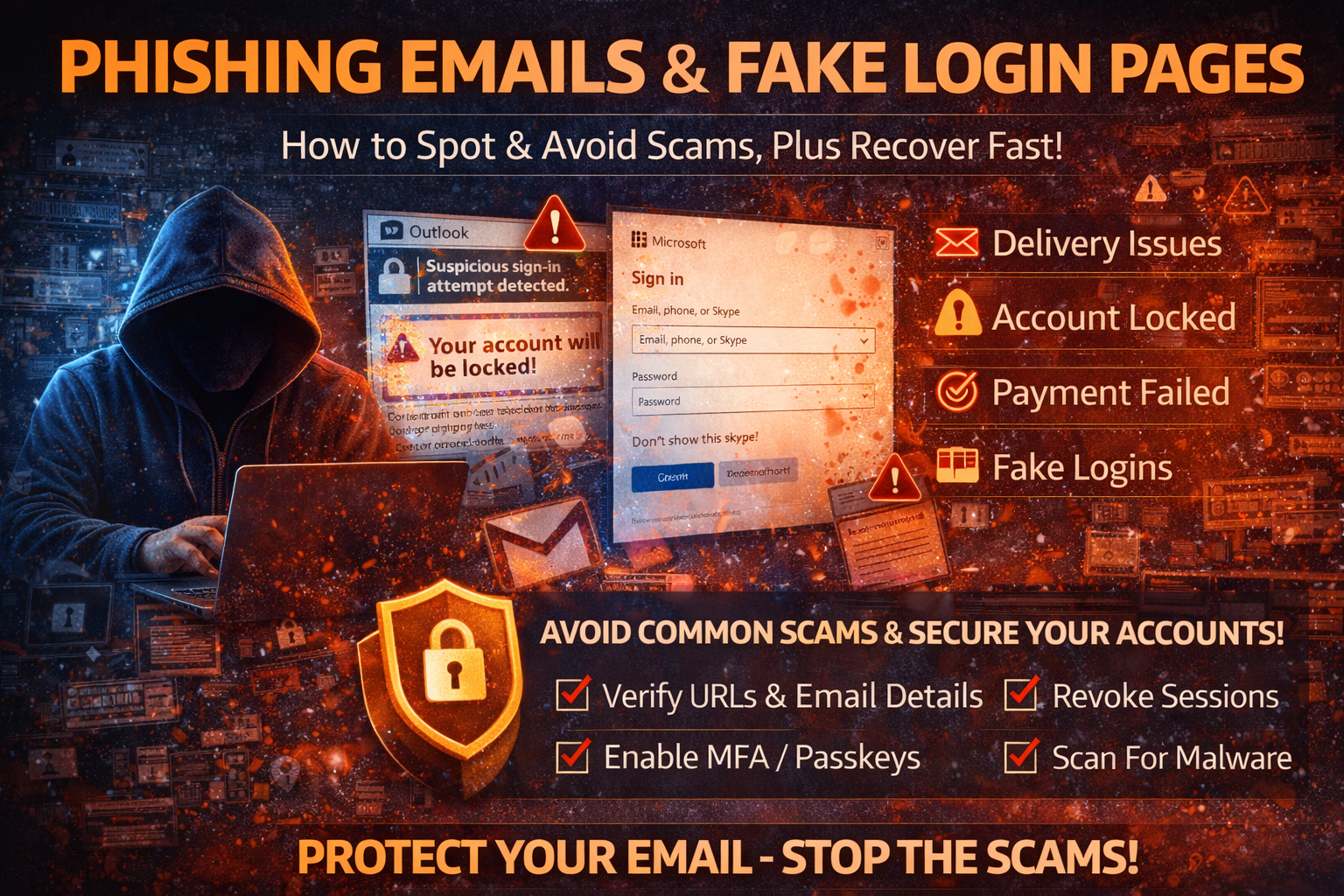
Phishing Emails & Fake Login Pages: How to Spot Them, Avoid Them, and Recover Fast (2026)
Phishing is still the #1 way attackers steal accounts, money, and private data because it targets human behavior, not just technology. A phishing email is designed to create urgency (“Your account will be locked”), curiosity (“You received a document”), or fear (“Suspicious login detected”). The goal is simple: make you click a link, download a file, or type your password into a fake page.
In 2026, phishing is more dangerous than ever because it’s no longer just bad spelling and obvious scams. Many phishing campaigns use professional branding, real-looking domains, cloned Microsoft/Google pages, and advanced techniques that can even capture your session after MFA.
This guide is a complete, copy-paste ready resource that explains modern phishing tactics, how to detect phishing emails and fake login pages, and the exact recovery steps if you clicked something suspicious.
What Is Phishing (In Simple Words)?
Phishing is a social engineering attack where criminals impersonate trusted organizations (Google, Microsoft, banks, courier services, universities, HR departments, or your boss) to trick you into doing one of these actions:
- clicking a malicious link
- downloading an infected attachment
- entering credentials on a fake login page
- sharing OTP/MFA codes
- approving a fake login prompt
Phishing works because it looks urgent and official, and because people are busy.
Why Phishing Still Works So Well in 2026
Phishing remains effective for a few major reasons:
1) People Reuse Passwords
If attackers steal one password, they try it everywhere (credential stuffing).
2) Fake Pages Look Real
Attackers clone login pages perfectly and use realistic wording, logos, and layout.
3) MFA Can Be Bypassed With “Proxy” Phishing
Some phishing pages act like a middleman: you log in, MFA works, and the attacker captures the session token created after MFA.
4) Infostealer Malware Is Often Delivered via Phishing
Many phishing emails deliver malware through ZIP, ISO, or “invoice” attachments that install infostealers and steal browser cookies.
The Most Common Types of Phishing Attacks
1) Email Phishing (Most Common)
Classic scam emails pretending to be:
- Microsoft 365
- banks
- delivery services
- HR departments
- social media platforms
2) Spear Phishing (Targeted)
The attacker uses personal information to make the email convincing:
- your name
- your company
- your role
- your recent activity
3) Business Email Compromise (BEC)
Attackers impersonate a CEO/manager/vendor and request:
- urgent wire transfers
- gift cards
- invoice payment updates
- bank details changes
BEC can be devastating because it bypasses technical defenses and hits finance workflows.
4) Smishing (SMS Phishing)
Text messages claiming:
- delivery issues
- bank alerts
- account locks
- refunds
Smishing is growing because people trust SMS more than email.
5) Vishing (Voice Phishing)
Attackers call pretending to be:
- bank support
- “Microsoft support”
- fraud department
They pressure victims into sharing OTPs or installing remote tools.
21 Red Flags: How to Spot a Phishing Email Fast
Here are the strongest signals. One red flag alone might not prove phishing, but multiple red flags together almost always do.
Sender and Domain Red Flags
- sender email doesn’t match the brand (e.g., “Microsoft” from a random domain)
- display name looks real but email address is strange
- domain uses extra words or misspellings (e.g.,
micros0ft-supportorsecure-google-login) - reply-to address is different from sender
Urgency and Threat Language
- “Act now” / “within 24 hours”
- “Your account will be closed”
- “Payment failed”
- “Suspicious activity detected”
- “Final warning”
Link and Page Red Flags
- link text says “Microsoft” but URL points to something else
- shortened links that hide the destination
- the login page URL is not the official domain
- the page asks for password + OTP together in the same form
Attachment Red Flags
- unexpected ZIP, ISO, RAR, or EXE files
- “invoice” files with unusual extensions
- password-protected documents with password included in email
- macro-enabled Office files asking you to “Enable Content”
Content and Formatting Red Flags
- generic greeting (“Dear user”)
- unusual grammar, spacing, or tone
- pressure tactics or emotional manipulation
- mismatched branding styles inside the same email
How to Check a Link Without Clicking (Safe Method)
Before opening any link:
- Hover over the link and read the domain carefully
- Look for subtle mistakes: extra letters, hyphens, misspellings
- If it claims to be Microsoft/Google, it should lead to official domains
- When unsure, don’t use the link—open the website manually in your browser
If you already clicked, don’t panic—follow the recovery section below.
How to Spot a Fake Login Page
Fake login pages often look perfect, but they fail in a few key places.
1) The Domain Is Wrong
A real Google sign-in uses a real Google domain, and Microsoft uses official Microsoft domains. Attackers may use:
- look-alike domains
- subdomains that look official
- long URLs to hide the real domain
2) The Page Asks for “Too Much”
Be suspicious if a login page asks for:
- password + OTP in the same step
- recovery email + recovery phone
- “backup codes”
- credit card details to “verify account”
3) The Page Doesn’t Behave Like a Real Login
Phishing pages often:
- don’t support autofill correctly
- show errors after login
- redirect strangely
- loop you back to a different login screen
4) It Forces You to Login for Something That Doesn’t Need Login
For example:
- “view invoice” but requires email password
- “download PDF” but asks for Microsoft login for a random file
That’s a classic phishing trick.
What To Do If You Clicked a Phishing Link (Immediate Recovery Plan)
If you clicked a link or entered your password, the next 30 minutes matter most.
Step 1: Stop Using the Possibly Infected Device
If you downloaded anything, assume the device might be infected. Use another trusted device to secure your accounts first.
Step 2: Change Passwords (Start With Email)
Email is the master key to everything else.
Change passwords in this order:
- Email (Gmail/Outlook)
- Password manager (if you use one)
- Banking/payment apps
- Work accounts (Microsoft 365/Google Workspace)
- Social media
Use long, unique passwords and avoid reuse.
Step 3: Revoke Sessions Everywhere
If attackers captured your session cookie, they may stay logged in even after password change.
Go to account security pages and:
- sign out of all devices
- revoke sessions
- remove unknown devices
Step 4: Enable Strong MFA / Passkeys
Turn on MFA immediately (authenticator app preferred). For important accounts, add passkeys if available.
Step 5: Check for Persistence Backdoors
Attackers commonly add:
- recovery emails/phones
- forwarding rules in email
- filters that hide security alerts
- third-party app access
- app passwords (Google/Microsoft)
Remove anything you don’t recognize.
Step 6: Scan Your Device for Malware
If you opened an attachment, you must scan. Many phishing emails deliver infostealers that steal cookies and saved passwords.
Do:
- full antivirus scan
- remove suspicious browser extensions
- uninstall unknown programs
- consider OS reset/reinstall for high-risk compromise
Phishing Prevention Checklist (What Actually Works)
Use a Password Manager + Unique Passwords
This stops credential reuse attacks and reduces impact if one password leaks.
Enable MFA and Prefer Authenticator/Passkeys
MFA blocks most logins even if the password is stolen. Passkeys reduce phishing risk further because they don’t work on fake domains.
Use Email Filters and Security Features
Enable:
- suspicious login alerts
- security notifications
- safe browsing protection in browser
Be Very Careful With Attachments
Avoid opening:
- ZIP/ISO attachments
- “invoice” files from unknown senders
- macro-enabled documents
Separate Your Critical Accounts
Keep email and banking activity on clean devices/browsers. Avoid casual extensions and downloads on the same browser profile used for sensitive accounts.
Examples of Common Phishing Subjects (So You Recognize Them)
- “Unusual sign-in attempt detected”
- “Your account will be locked”
- “Payment failed — update billing”
- “SharePoint document received”
- “You have a voicemail”
- “Package delivery failed”
- “Verify your identity now”
- “Password expires today”
Always verify directly through the real website, not the email link.
FAQ
Can phishing steal my account even if I have MFA?
Yes, in advanced cases. Proxy phishing can capture session tokens after MFA. That’s why session revocation and passkeys are strong defenses.
What if I entered my password but didn’t submit?
Still change it. Some phishing pages log keystrokes or capture partial input.
What’s the safest way to login from an email?
Don’t. Open the website manually, then log in from there.
About The Author




