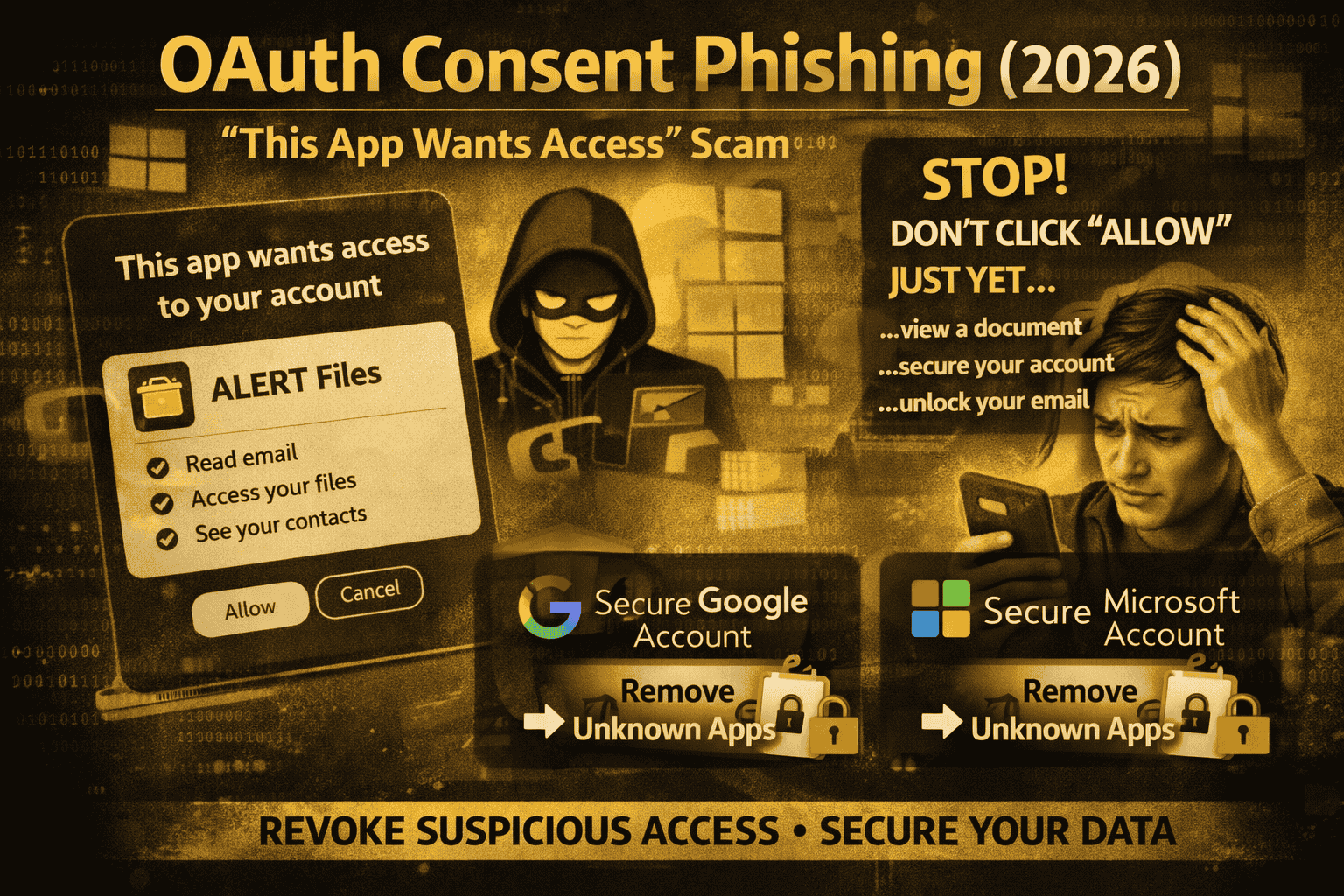
OAuth App Consent Phishing (2026): “This App Wants Access” Scam
A lot of people think phishing only happens when someone steals your password on a fake login page. But in 2026, many attacks don’t need your password at all. Instead, scammers trick you into giving a malicious app permission to read your email, view your files, or access your contacts simply by clicking Allow on a real-looking consent screen. If you see “This app wants access to your account,” don’t click Allow automatically
This is called OAuth consent phishing (sometimes described as an “app consent attack” or “illicit consent grant”). Microsoft explains that if a threat actor gets a user to grant consent to a malicious app, the attacker can gain long-lasting access that’s often harder to notice than normal password theft.
What OAuth consent is?
OAuth is a common way to let an app access part of your account without giving the app your password. That’s why you see buttons like “Continue with Google” or “Sign in with Microsoft,” and why you sometimes see permission screens such as:
- “View your email”
- “See your contacts”
- “Access your files”
Those permissions are called scopes. Once you approve them, the app can keep accessing that data using tokens until access is revoked (or the token expires and gets refreshed).
OAuth itself isn’t “bad.” The problem is when the app is malicious, and the user is tricked into approving it.
How the “This App Wants Access” scam works
Most consent phishing follows a predictable pattern.
First, you receive a message that creates urgency: “Document shared,” “Invoice attached,” “Your mailbox is full,” “Security alert,” or “Teams meeting invite.” The link doesn’t always take you to a fake password page. Instead, it pushes you into an OAuth consent flow.
Then you see a permission screen that looks official. Sometimes it even appears on legitimate Microsoft or Google pages, which makes it feel safe. Microsoft’s Entra team describes how attackers publish data-stealing apps and trick users into granting consent, gaining access to an environment through that consent.
Finally, once you click Allow, the attacker’s app can access your data (depending on what you approved). And here’s the scary part: changing your password may not kick the attacker out, because the access is coming from an authorized app, not a stolen password. Microsoft’s incident response playbook for app consent attacks is built around investigating and removing that granted access.
Why this attack feels “legit”
Consent phishing works because it uses normal, everyday behavior:
- You’ve seen consent screens before.
- You’ve clicked “Allow” before.
- The page often looks official.
Attackers take advantage of that familiarity. Microsoft notes that because this attack is less common than regular credential phishing, many users are less aware and therefore more vulnerable.
The biggest red flags to watch for
If you spot any of these, stop immediately:
A link says you must “Allow access” to view a file, unlock email, or pass verification. Real files don’t require random third-party app permissions.
The app name looks odd, generic, or slightly misspelled (examples: “Mirosoft Secure,” “Drive Document Viewer,” “Teams Admin Update”).
The permissions look too powerful for the situation—like a “PDF viewer” asking to read your email, manage your mailbox, or access all files.
You weren’t trying to connect any new app, but you suddenly see an access request.
If something feels off, close the page and go check your account’s connected apps directly (steps below).
Remove the malicious app access
1) Remove unknown apps from your Google Account
Google provides a “third-party connections” area where you can see which apps/services have access and remove them.
Do this:
- Open your Google Account settings → Third-party connections
- Find anything you don’t recognize
- Open it → review what it can access
- Choose Remove access / revoke
- If you suspect misuse, Google also allows reporting the app from that page
Important: Google notes that revoking access stops future access, but the third party may have already copied data, so you may need to contact them to delete it.
2) Remove suspicious app consent in Microsoft
In Microsoft environments, these are often called app consent or illicit consent grants. Microsoft documents how attackers register an application, trick a user into granting consent, and then use that consent to access data like email or documents.
If you’re a personal user, start with:
- Review “recent sign-ins” / security activity
- Change password (still recommended)
- Sign out of sessions where possible
- Remove any connected apps you didn’t approve
If you’re in an organization, Microsoft provides detailed investigation and response guidance for app consent incidents (including how to identify the app and remediate).
After you revoke access: do these 3 safety steps
Even after you remove the app, do these steps to fully recover:
Change your password (especially if you clicked through other pages or reused passwords).
Enable stronger sign-in protections (like phishing-resistant methods where available). Microsoft continues to recommend stronger protections and explains OAuth consent phishing prevention measures in Entra.
Check forwarding / mailbox rules (attackers sometimes set rules to hide replies or forward messages once they gain access). Microsoft’s incident response guidance focuses on investigating the impact and minimizing further risks.
FAQs
I changed my password but the problem continued. Why?
Because the attacker may still have access through the authorized app, not through your password. That’s why revoking the app’s access is essential.
Is it safe to click Allow on OAuth screens?
Only when you started the action yourself and you trust the app. If the consent screen appears because of an unexpected email/link, treat it as suspicious. Microsoft describes this exact “trick the user into granting permissions” pattern.
What permissions are the most dangerous?
Anything involving email, files, contacts, or offline access/long-term access is high risk because it can allow ongoing data access. Microsoft’s illicit consent grant description highlights attackers requesting access to data like email, contacts, and documents.
About The Author




