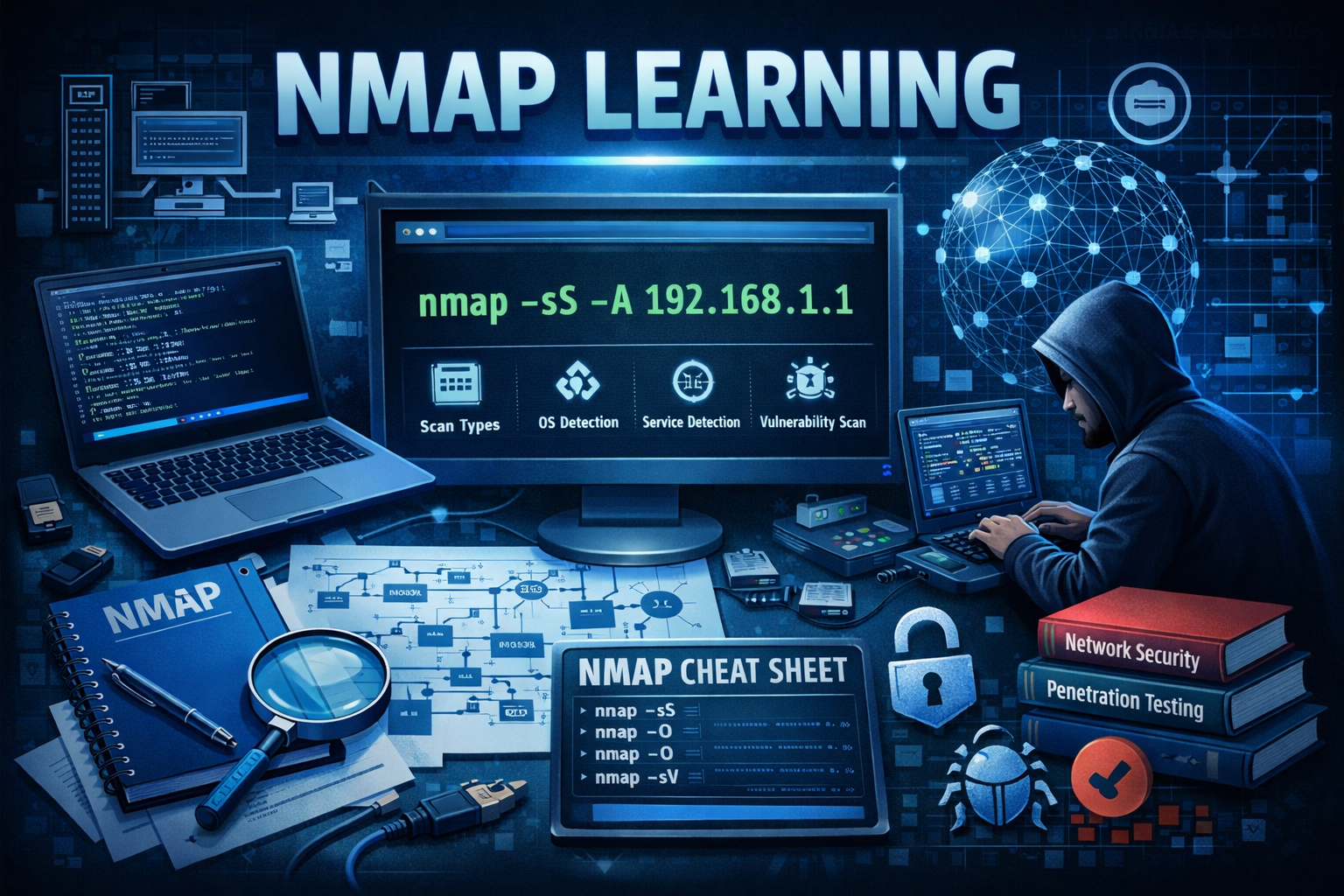
Nmap Cheat Sheet for Beginners (2026): Best Commands and Practical Examples
Nmap is one of the most important tools in cybersecurity because it helps you answer a simple but critical question: “What is actually exposed on this system?” If you can’t discover hosts, open ports, and running services, you can’t test security properly and you can’t defend systems properly either.
Beginners often search “Nmap commands” and end up copying random scans from the internet without understanding what they do. That leads to confusion, noisy results, and mistakes. This guide fixes that by giving you a practical beginner cheat sheet with safe examples, clear explanations, and a simple learning workflow.
Use Nmap only on systems you own or where you have written permission. If you want safe legal platforms and practice labs, start here:
https://eliteerasecurity.com/best-free-platforms-to-learn-ethical-hacking-2026-guide/
If you are new to ethical hacking and want the basic roadmap first, read:
https://eliteerasecurity.com/what-is-ethical-hacking-a-beginners-guide-2026-edition/
If you’re building your lab with Kali Linux, use this setup guide:
https://eliteerasecurity.com/kali-linux-for-beginners-2026-install-safe-lab-first-10-commands/
What Nmap does in simple words
Nmap helps you discover:
- Which hosts are online
- Which ports are open on those hosts
- Which services are running on those ports
- Which service versions might be exposed (example: Apache 2.4.x, OpenSSH 8.x)
- Useful additional info using scripts (NSE), like basic misconfig signals (when used legally)
Think of Nmap like a flashlight for networks. It doesn’t “hack” by itself. It shows what’s visible and reachable.
Beginner setup (so your examples make sense)
Before scanning anything, set a legal practice target. Here are safe beginner options:
- TryHackMe rooms (guided)
- Hack The Box Starting Point (guided)
- Local vulnerable apps like OWASP Juice Shop inside Docker
- A second VM (Metasploitable, or a vulnerable target VM) inside your private lab network
If you want tools and lab setup ideas, see:
https://eliteerasecurity.com/ethical-hacking-tools-for-beginners-top-15-2026-practical-guide/
How to read an Nmap result (the part beginners skip)
When you run a scan, you will usually see:
- Host status: up or down
- Ports: open, closed, filtered
- Service: http, ssh, smb, mysql, etc.
- Version (if version detection is enabled)
Important meanings:
- Open means the port is accepting connections
- Closed means the host is reachable but the port is not listening
- Filtered means something is blocking or dropping the probe (firewall / filtering / network rules)
Beginner mindset:
- Nmap gives you leads
- Your next step is enumeration and verification inside a legal lab
Nmap Cheat Sheet (Beginner-Friendly)
Below are the best Nmap commands beginners should master, with safe explanations and when to use each one. These examples assume you’re scanning a lab IP like 192.168.56.101 or a lab subnet like 192.168.56.0/24.
1) Check if a host is online (Ping scan)
Use this when you only want to know if the host is up, without doing port scans.
- nmap -sn 192.168.56.101
Also useful for checking an entire subnet:
- nmap -sn 192.168.56.0/24
Beginner tip:
- If hosts don’t respond, it doesn’t always mean “down.” Some networks block ping. You can still try a port scan if you have permission.
2) Quick scan (most common beginner scan)
This scans the most common 1000 TCP ports.
- nmap 192.168.56.101
When to use:
- First look at a single host
- Quick discovery before deeper scans
3) Scan a specific port (fast and focused)
If you already know what you want to check:
- nmap -p 22 192.168.56.101
- nmap -p 80 192.168.56.101
- nmap -p 22,80,443 192.168.56.101
When to use:
- Confirm if a specific service is exposed
- Avoid noisy scans in a lab exercise
4) Scan a port range
- nmap -p 1-1000 192.168.56.101
When to use:
- You want broader coverage than default
- You’re learning and want to see more services
5) Scan all ports (slow but complete)
- nmap -p- 192.168.56.101
Meaning:
- p- means ports 1 to 65535
Beginner advice:
- This can be slow. Use it in labs and be patient.
- A common workflow is: quick scan → all ports → enumerate what matters.
6) Service and version detection (very important)
This helps Nmap identify what’s running on open ports.
- nmap -sV 192.168.56.101
Why it matters:
- “Open port 80” is useful, but “Apache 2.4.x on port 80” is much more useful for learning enumeration.
7) Detect the operating system (OS detection)
- nmap -O 192.168.56.101
Beginner note:
- OS detection is guessing based on network behavior. It can be wrong, especially through NAT, firewalls, and VMs.
8) Aggressive scan (common but often misunderstood)
- nmap -A 192.168.56.101
What -A includes:
- OS detection
- Version detection
- Script scanning
- Traceroute
Beginner warning:
- -A is noisy and heavy. Use it only in labs and when you understand why.
9) TCP SYN scan (default on many systems, faster)
- nmap -sS 192.168.56.101
Why it’s popular:
- It’s fast and commonly used for discovery
- Requires privileges (root/sudo) on Linux
10) TCP connect scan (useful when you don’t have privileges)
- nmap -sT 192.168.56.101
Beginner explanation:
- If you can’t run SYN scan due to permissions, connect scan works.
11) UDP scan (important but slow)
- nmap -sU 192.168.56.101
Beginner note:
- UDP scanning is slower and trickier because UDP is “connectionless.”
- Start small:
- nmap -sU -p 53,67,68,123,161 192.168.56.101
Common UDP services:
- 53 DNS
- 123 NTP
- 161 SNMP
12) Disable DNS resolution (faster in many labs)
- nmap -n 192.168.56.101
Why:
- Nmap often tries DNS lookups. In labs, this can slow things down.
13) Show only open ports (clean output)
- nmap –open 192.168.56.101
Why it’s useful:
- Beginners get overwhelmed with closed ports
- This keeps output focused
14) Increase verbosity (see what’s happening)
- nmap -v 192.168.56.101
- nmap -vv 192.168.56.101
Why:
- Helps you learn how Nmap progresses
- Useful when scans seem “stuck”
15) Save output to a file (professional habit)
Save normal output:
- nmap -oN scan.txt 192.168.56.101
Save XML output (useful for reporting tools):
- nmap -oX scan.xml 192.168.56.101
Save grepable output:
- nmap -oG scan.gnmap 192.168.56.101
Beginner tip:
- Always keep scan results. It helps you compare progress and write reports.
16) Scan multiple targets at once
- nmap 192.168.56.101 192.168.56.102 192.168.56.103
Or a file of targets:
- nmap -iL targets.txt
17) Exclude targets (when scanning a subnet in labs)
- nmap 192.168.56.0/24 –exclude 192.168.56.1,192.168.56.2
18) Scan speed and timing templates (use carefully)
Nmap has timing templates from T0 (slow) to T5 (fast).
- nmap -T3 192.168.56.101
- nmap -T4 192.168.56.101
Beginner guidance:
- T3 or T4 is fine in labs
- Don’t jump to T5 unless you know what you’re doing (it can cause missed results and instability)
19) Limit retries (can speed up scans)
- nmap –max-retries 2 192.168.56.101
Use-case:
- In labs with stable networks, lowering retries can reduce scan time.
20) Add “reason” to understand why Nmap marked a port open/closed
- nmap –reason 192.168.56.101
This is helpful for learning because you see why a state was assigned.
The most practical Nmap workflow for beginners
A simple workflow that works in almost every lab:
Step 1: Find live hosts (if scanning a subnet)
- nmap -sn 192.168.56.0/24
Step 2: Quick TCP scan of a host
- nmap 192.168.56.101
Step 3: Full port scan (if needed)
- nmap -p- 192.168.56.101
Step 4: Version detection on open ports
- nmap -sV -p 22,80,443 192.168.56.101
Step 5: Then enumerate based on service
- If HTTP: use Burp/ZAP and web enumeration
- If SSH: check auth methods, versions (in lab)
- If SMB: learn enumeration (in legal labs)
- If SNMP: learn SNMP enumeration (lab)
For web testing tools and beginner workflow, see:
https://eliteerasecurity.com/ethical-hacking-tools-for-beginners-top-15-2026-practical-guide/
Nmap NSE scripts (Beginner introduction)
Nmap has a scripting engine called NSE (Nmap Scripting Engine). Scripts can help with discovery, basic checks, and enumeration in legal environments.
Beginner rule:
- NSE scripts are powerful
- Use them only in labs or authorized targets
Run default scripts:
- nmap -sC 192.168.56.101
What -sC does:
- Runs a set of default safe scripts (still only use with permission)
Combine scripts + version detection:
- nmap -sC -sV 192.168.56.101
Target a specific script category (examples):
- nmap –script vuln 192.168.56.101
- nmap –script safe 192.168.56.101
Beginner warning:
- Avoid “vuln” scripts on anything you don’t own or explicitly have permission to test
- In a training lab, scripts are a great learning accelerator
Real beginner examples (safe lab scenarios)
Scenario 1: You found port 80 open (web service)
Your goal is to identify what web server and tech is running.
Commands:
- nmap -sV -p 80 192.168.56.101
- nmap -sC -sV -p 80 192.168.56.101
Next step:
- Open the website in browser
- Use Burp Suite or OWASP ZAP in a legal lab to intercept and learn requests
If you want beginner web testing next, you can use:
https://eliteerasecurity.com/cloud-incident-response-plan-cirp-a-real-world-guide-for-2026/
(Useful for understanding response mindset after vulnerabilities are found)
Scenario 2: You found port 22 open (SSH)
Your goal is to learn enumeration basics, not attack.
Commands:
- nmap -sV -p 22 192.168.56.101
What to look for:
- OpenSSH version (for learning about patching and exposure)
- If it’s a lab, you may have credentials from the exercise
Scenario 3: You scanned a subnet and found multiple hosts
Your goal is to identify which hosts have web services.
Commands:
- nmap -sn 192.168.56.0/24
- nmap -p 80,443 –open 192.168.56.0/24
- nmap -sV -p 80,443 –open 192.168.56.0/24 -oN web_hosts.txt
This produces a clean list of web-exposed hosts.
Common Nmap mistakes beginners make
Mistake 1: Scanning “everything” immediately
Better approach:
- Start focused: quick scan → full ports if needed → version detection → enumerate
Mistake 2: Confusing “filtered” with “open”
Filtered often means:
- firewall rules
- network filtering
- packet drops
In real environments, filtered is common. In labs, you might see it depending on VM network settings.
Mistake 3: Using aggressive options without understanding
-A can be useful, but it can also create noise and confusion. Learn basics first.
Mistake 4: Not saving results
Professional habit:
- Always save scan output
- It becomes your evidence and learning record
Mistake 5: Scanning unauthorized targets
This is the biggest mistake.
Use legal labs and authorized systems only.
If you need legal practice platforms again:
https://eliteerasecurity.com/best-free-platforms-to-learn-ethical-hacking-2026-guide/
Nmap quick command list (copy/paste)
Host discovery:
- nmap -sn 192.168.56.0/24
Default scan:
- nmap 192.168.56.101
Specific ports:
- nmap -p 22,80,443 192.168.56.101
All ports:
- nmap -p- 192.168.56.101
Version detection:
- nmap -sV 192.168.56.101
Default scripts:
- nmap -sC 192.168.56.101
Scripts + versions:
- nmap -sC -sV 192.168.56.101
OS detection:
- nmap -O 192.168.56.101
Aggressive:
- nmap -A 192.168.56.101
UDP scan:
- nmap -sU -p 53,123,161 192.168.56.101
No DNS:
- nmap -n 192.168.56.101
Only open ports:
- nmap –open 192.168.56.101
Save output:
- nmap -oN scan.txt 192.168.56.101
FAQs (High search intent)
What is the best Nmap command for beginners?
Start with a default scan:
- nmap target_ip
Then add version detection: - nmap -sV target_ip
This gives you the clearest beginner results.
Is Nmap illegal?
Nmap itself is legal software. The legality depends on how you use it. Scanning systems without permission can be illegal or against policy. Practice in legal labs or on systems you own.
Why does Nmap show “filtered” ports?
Filtered means something is blocking or dropping the scan probes, usually firewalls or network rules. It does not automatically mean the service is open.
Should I scan all ports every time?
Not always. A smart workflow is quick scan first, then scan all ports only if needed, then focus enumeration on what you find open.
Can Nmap detect vulnerabilities?
Nmap can run scripts that may identify known issues, but it is not a full vulnerability scanner. It’s best for discovery and enumeration. Use scanners like Nessus/OpenVAS in lab environments for broader vulnerability detection.
Conclusion
Nmap is the foundation tool for ethical hacking and network security because it teaches you real discovery thinking. As a beginner, don’t chase complicated commands. Master a simple workflow: find hosts, scan ports, detect services, save output, then enumerate based on what you discover. This approach builds real skills and prevents the confusion most beginners face.
About The Author




