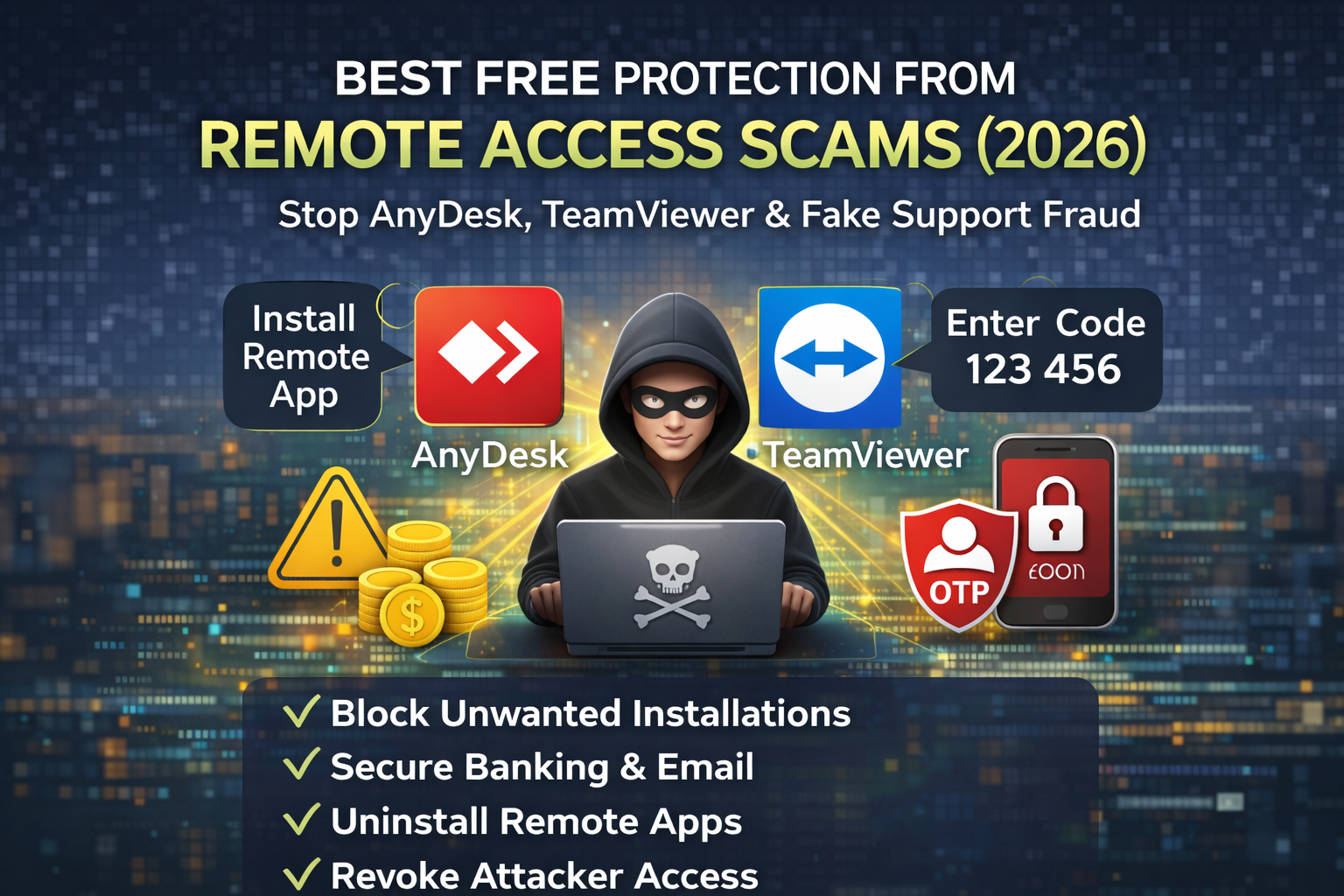
Best Free Protection From Remote Access Scams
Remote access scams are one of the most damaging online fraud types in 2026 because they don’t need advanced hacking. Scammers simply convince victims to install remote-control software (like AnyDesk, TeamViewer, UltraViewer, RemotePC, etc.) and then they take control of the computer or phone in real time. Once connected, they can steal money, capture passwords, access emails, change banking details, install malware, and even lock the device for ransom. These scams work because they feel “professional”: the attacker pretends to be bank support, Microsoft/Google, a courier company, a job recruiter, or even a government department.
This guide gives you free protection you can apply immediately no paid tools required. You’ll learn how the scam works, the exact red flags, the safest settings, and what to do if you already installed remote access software.
What Is a Remote Access Scam?
A remote access scam happens when a scammer tricks you into giving them control of your device through legitimate remote desktop tools. The software itself is not always “malware”—it’s a real program often used by IT teams. The scam is the social engineering: the attacker creates urgency, fear, or authority so you click “Allow” and hand over your screen.
The scam becomes dangerous because once the scammer is controlling your device, they can do “legitimate-looking” actions that bypass many security defenses—like opening your bank website (as you), reading your OTPs, or accessing your email while you’re logged in.
Why These Scams Are Trending in 2026
Remote access fraud is growing because it scales. Attackers can operate call centers, run scripts, and target thousands of people daily using cheap VoIP numbers, fake websites, and social media ads. Victims are often told they have a virus, a refund is pending, their account is blocked, or they need “verification.” The biggest risk is not only money loss—it’s full identity compromise if your email and passwords are exposed.
These scams also spread through WhatsApp and Facebook: scammers send a link, then instruct the victim to install a “support app” to fix something. Business owners are also targeted with fake “Meta support” or “Google Business verification” calls.
How Remote Access Scams Usually Work (Real-World Flow)
Most remote access scams follow a predictable pattern. Knowing the pattern makes them easy to spot.
Typical steps:
- The scammer contacts you (call, SMS, WhatsApp, email, pop-up alert, Facebook message).
- They create urgency: “Your bank account is blocked,” “A refund is pending,” “Your PC is infected,” “Your Facebook page will be disabled.”
- They tell you to install a tool: “AnyDesk / TeamViewer / Remote app.”
- They ask for a code (AnyDesk address, session ID, TeamViewer ID/password).
- They ask you to click Allow / Grant permissions so they can control your device.
- While connected, they push you into logging in to banking/email or approving actions.
- They may hide their actions by moving fast, distracting you, or blacking the screen.
The key point is simple: a real company rarely needs full control of your personal device, especially not through random apps installed during a call.
The Biggest Red Flags (If You See These, It’s Almost Always a Scam)
Remote access scams rely on pressure and confusion. The moment you notice these red flags, stop.
High-confidence scam signals:
- “Install AnyDesk/TeamViewer to verify your identity.”
- “We are from Microsoft/Google/Bank support” but they contacted you first.
- “Don’t disconnect the call or your account will be blocked.”
- “We need to check your screen to confirm the refund/payment.”
- “Type this command / open Run / open Terminal.”
- They tell you to hide the call from family or not to tell anyone.
- They ask for OTP codes, banking PINs, or screen sharing while you log in.
Golden rule:
Real support never asks for your OTP/PIN, and real support doesn’t pressure you to install remote-control apps during an unsolicited call.
Best Free Protection From Remote Access Scams (2026)
The strongest protection is a combination of: awareness + device settings + account security. You don’t need paid software to block most attacks.
1) Use a “No Remote Access” personal policy (the #1 protection)
Decide now: You will never install remote access tools because someone called you.
If you truly need tech support, you will contact official support through the website/app you already trust—not through a number or link someone sends you.
This single rule defeats most scams because the attacker loses the only weapon they have: control.
2) Block scam channels: notifications, pop-ups, and unknown calls
A lot of remote scams start from a fake security popup (“Your PC is infected—Call now”) or notification spam.
Free hardening steps:
- Block/limit browser notifications (don’t allow random sites to “send alerts”).
- Keep Safe Browsing / anti-phishing protection enabled in your browser.
- Silence unknown callers (especially for WhatsApp business users).
- Treat “call now” popups as malicious—close the browser tab, don’t call.
3) Lock down your device so “quick access” can’t happen
Many scams become worse because the attacker can change settings easily.
Basic free protections:
- Keep OS updated (Windows/macOS/Android/iOS).
- Use a strong screen lock (PIN/biometrics).
- On phones, review app permissions (screen sharing, accessibility, device admin).
4) Strengthen your core accounts (email first)
Remote access scams often end in account takeover. If email falls, everything falls.
Free account security upgrades:
- Enable passkeys or authenticator-app 2FA on email.
- Remove SMS-based recovery if possible (or protect your number from SIM swap).
- Keep recovery email/phone clean (remove unknown entries).
- Use unique passwords (no reuse).
5) Separate “banking/email” browsing from casual browsing
This is a powerful free trick: use a separate browser profile for banking/email with minimal extensions. It reduces the chance that a compromised browsing environment helps the scammer.
What To Do If You Already Installed AnyDesk/TeamViewer (Emergency Cleanup)
If you installed remote software or gave someone access, act fast. Don’t panic—just clean it properly.
Step 1: Disconnect immediately
- Turn off Wi-Fi / unplug Ethernet to cut the session.
- Close the remote app if you can.
Step 2: Uninstall the remote access software
Remove AnyDesk/TeamViewer/other remote tools you installed during the incident. If you genuinely need them later, reinstall only from the official source when you are calm.
Also check for other unwanted installs. Scammers sometimes install extra tools silently.
Step 3: Check “unattended access” and startup settings
Remote apps sometimes allow permanent access if a password is set.
- Ensure Unattended Access is OFF.
- Remove any saved passwords inside the remote app.
- Disable the app from running at startup.
- Check for unknown “remote” services or scheduled tasks (Windows).
Step 4: Secure accounts in the correct order (email → finance → social)
From a clean device if possible:
- Change your email password, enable passkeys/authenticator, sign out of all sessions
- Change banking/fintech passwords and review transactions
- Change social accounts and enable 2FA
- Review password manager (if used)
If the scammer watched you type a password, assume it’s compromised.
Step 5: Revoke sessions and connected apps
On email and major platforms, check:
- Active sessions/devices
- Authorized apps
- Forwarding rules and filters (attackers hide alerts)
Step 6: Run a full device scan
Use built-in protection:
- Windows Security (full scan)
- macOS security updates + remove suspicious profiles/apps
- Android/iPhone: remove unknown apps, review Accessibility/Device Admin permissions
Common Tricks Scammers Use During Remote Access
Scammers often use “psychological control” techniques to keep victims compliant while they steal money.
Common manipulation tactics:
- “Refund scam”: they pretend to send you money and ask you to return “extra.”
- “Bank verification”: they force you to log in while they watch.
- “Fear alerts”: they show fake “virus detected” screens.
- “Screen blackout”: they hide what they’re doing.
- “Urgency”: “Do it now or your account will be blocked.”
These scripts are designed to make you act quickly and stop thinking. Slowing down and ending the call breaks the attack.
FAQs
Are AnyDesk and TeamViewer themselves viruses?
Not necessarily. They are legitimate remote support tools. The scam happens when criminals trick you into installing them and granting access.
Can a scammer steal money if they only see my screen?
Yes. If you log in while they watch, they can capture passwords, guide you into approving transfers, or take control and perform actions directly.
What should I do if I shared my remote access code?
Disconnect internet immediately, uninstall the remote tool, check for unattended access, then change passwords—starting with email—and revoke all sessions.
How do I know if they installed something else?
Check “Installed apps/programs” and startup items for anything added around the scam time. If you’re unsure, run a full scan and consider professional help for high-value accounts.
Can this happen on a phone too?
Yes. Scammers may push screen-sharing apps or accessibility-permission apps on Android, and they may use social engineering to guide you through settings. The same rule applies: never grant remote access because someone contacted you first.
About The Author




