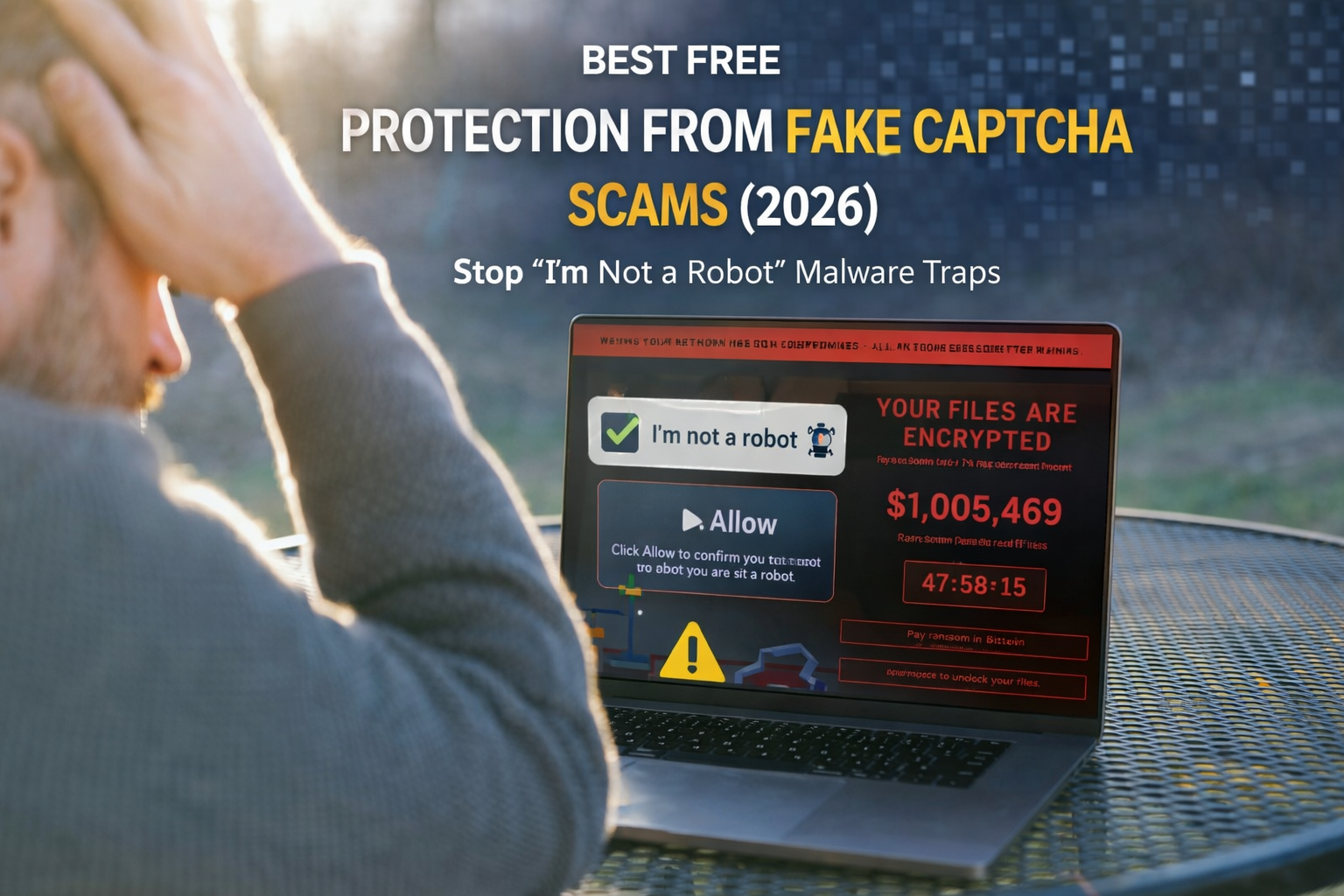
Best Free Protection From Fake CAPTCHA Scams (2026)
Fake CAPTCHA scams (sometimes called “CAPTCHA copy-paste scams” or “verification malware traps”) are one of the most common tricks in 2026 because they look normal and they feel routine. You land on a page, you see a box that says “I’m not a robot”, and you expect a quick verification. But instead of a real CAPTCHA, the page pushes you into dangerous steps like “click Allow,” “copy this code,” or “press Windows + R.”
The goal is simple: make you approve something you didn’t mean to approve—like browser notifications spam, a malicious command, a fake software download, or a credential theft page. The good news is you can block most fake CAPTCHA attacks using free browser settings, safer habits, and a quick cleanup checklist.
A real CAPTCHA is a verification step used by legitimate websites to reduce automated abuse. A fake CAPTCHA is a look-alike screen designed to trick humans into doing something harmful. It often appears on:
- piracy/streaming sites, “free download” pages, cracked software pages
- fake news popups, adult pages, gambling pages
- link shorteners, “watch video” pages, “download PDF” pages
- compromised WordPress sites and low-quality ad networks
Fake CAPTCHAs succeed because they hijack a habit: people click without thinking.
How Fake CAPTCHA Scams Usually Attack (2026 Patterns)
Fake CAPTCHA pages typically use one of these methods:
1) Notification permission trap (“Click Allow to continue”)
You see a message like:
- “Click Allow to confirm you are not a robot”
- “Allow notifications to watch the video”
- “Click Allow to download”
If you click Allow, the site can start sending you spam notifications that look like system alerts, virus warnings, giveaways, or “your phone is infected” messages. Those notifications are used to push phishing pages and scams.
2) Copy-paste command scam (“Press Win+R and paste”)
This is one of the most dangerous. The fake CAPTCHA instructs you to copy a line of text and paste it into Run (Windows), Terminal (Mac/Linux), or the browser’s address bar. That line can be a malicious command that downloads malware, adds a scheduled task, steals browser data, or opens a backdoor.
3) Fake download / fake update (“Install to verify”)
You’re told to install an extension, a “player,” a “browser update,” or “verification tool.” It’s usually malware or a shady program bundled with adware.
4) Credential phishing (“Log in to verify”)
You’re redirected to a fake login page (Google, Microsoft, Facebook, etc.) that steals your password.
Best Free Protection From Fake CAPTCHA Scams (2026)
The strongest free approach is:
- Know the red flags so you don’t click “Allow” or paste anything
- Block notification abuse with browser settings
- Use built-in safe browsing protections and keep the browser updated
- Clean up fast if you already clicked something
You don’t need paid security tools for this—just correct settings + a simple habit.
1) Red Flags: How to Spot a Fake CAPTCHA in 5 Seconds
Real CAPTCHAs do not ask you to do strange system actions. Treat these as instant danger signs:
- “Click Allow to prove you’re not a robot”
- “Press Windows + R and paste this”
- “Open Terminal and paste”
- “Install this extension to continue”
- “Download this file to verify”
- CAPTCHA appears on a random page that doesn’t need verification (downloads, streaming, popups)
Golden rule: A CAPTCHA should never require you to change browser permissions, install something, or run commands.
2) Block Notification Spam
Because many fake CAPTCHA scams are actually notification permission scams, your best protection is controlling notifications.
Recommended free browser setting (best practice)
Set notifications to Ask first (or block by default), and remove any sites you don’t recognize.
Do this immediately if you often see popups asking: “Show notifications?”
What to do if you already clicked “Allow”
If you clicked Allow, you might notice popups even when the browser is closed. Fix it by:
- Opening your browser settings → Notifications
- Removing/blocking any suspicious websites
- Keeping only trusted sites (e.g., Gmail, calendar tools—if you truly need them)
This alone can stop 90% of the “fake CAPTCHA” spam loop.
3) Use Safe Browsing + Keep Your Browser Updated (Free, High Value)
Modern browsers include security features that block known dangerous sites and downloads. Many people disable these for speed—don’t.
Keep enabled:
- Enhanced/Standard Safe Browsing (depending on browser)
- Download warnings
- “Dangerous site” warnings
Also update your browser regularly. Fake CAPTCHA campaigns shift domains constantly, but browser protections improve with updates and blocklists.
4) Stop the “Copy-Paste Command” Attack (Most Important Habit)
The most harmful fake CAPTCHA technique is when it convinces you to paste commands into Windows Run, PowerShell, Terminal, or command prompt.
Never do this (even once)
- Don’t paste anything you don’t understand into Run/Terminal
- Don’t paste “verification code” into system tools
- Don’t paste scripts from random pages
If you already pasted something, treat it as a possible infection and do the cleanup steps below.
5) Use a Clean Browser Setup (Free Hardening That Makes Scams Fail)
A clean browser setup reduces how often you’ll even see fake CAPTCHA traps.
Free hardening tips:
- Use an ad blocker from a reputable publisher (reduces malicious popups)
- Remove unused extensions (less risk of redirect/adware)
- Use separate browser profiles:
- Profile for bank/email (minimal extensions)
- Profile for general browsing
This won’t block every scam, but it reduces exposure and limits damage.
What To Do If You Think You Hit a Fake CAPTCHA Scam
If you clicked “Allow,” installed something, or pasted a command, don’t panic—clean it properly.
A) If you clicked “Allow” (notification spam)
- Browser Settings → Site Settings → Notifications
- Remove/block suspicious sites
- Close the browser and reopen
- If spam continues, clear browser data for the offending site
B) If you installed a suspicious extension
- Remove the extension immediately
- Check if any other unknown extensions were added
- Reset homepage/search engine/new tab settings
- Change passwords for important accounts (start with email)
C) If you downloaded and ran a file OR pasted a command
- Disconnect from the internet briefly (optional but helpful)
- Run a full scan using built-in Windows Security / your OS tools
- Check startup apps and recently installed programs; remove suspicious ones
- Change passwords from a clean device, starting with email
- Enable passkeys/authenticator 2FA for critical accounts
If your browser sessions were stolen, changing passwords alone is not enough—log out of other sessions everywhere (email and major accounts offer “sign out of all devices”).
Checklist: Best Free Protection From Fake CAPTCHA Scams (2026)
- Never click Allow on “I’m not a robot” pages
- Block/remove unknown sites from browser Notifications
- Never paste “verification code” into Run/Terminal/PowerShell
- Don’t install random extensions or “updates” to pass a CAPTCHA
- Keep Safe Browsing + browser updates ON
- Use a reputable ad blocker and keep extensions minimal
- If exposed: remove notifications/extensions, scan device, reset passwords
FAQs
Are fake CAPTCHA popups dangerous?
Yes. Many are designed to trick you into enabling notifications, installing malware, or running a malicious command.
Why do fake CAPTCHAs ask to “Click Allow”?
Because browser notification permissions let scammers send spam alerts and phishing links directly to your device.
What’s the best free protection?
Block notification abuse, never run copy-paste commands, and keep Safe Browsing enabled.
About The Author




