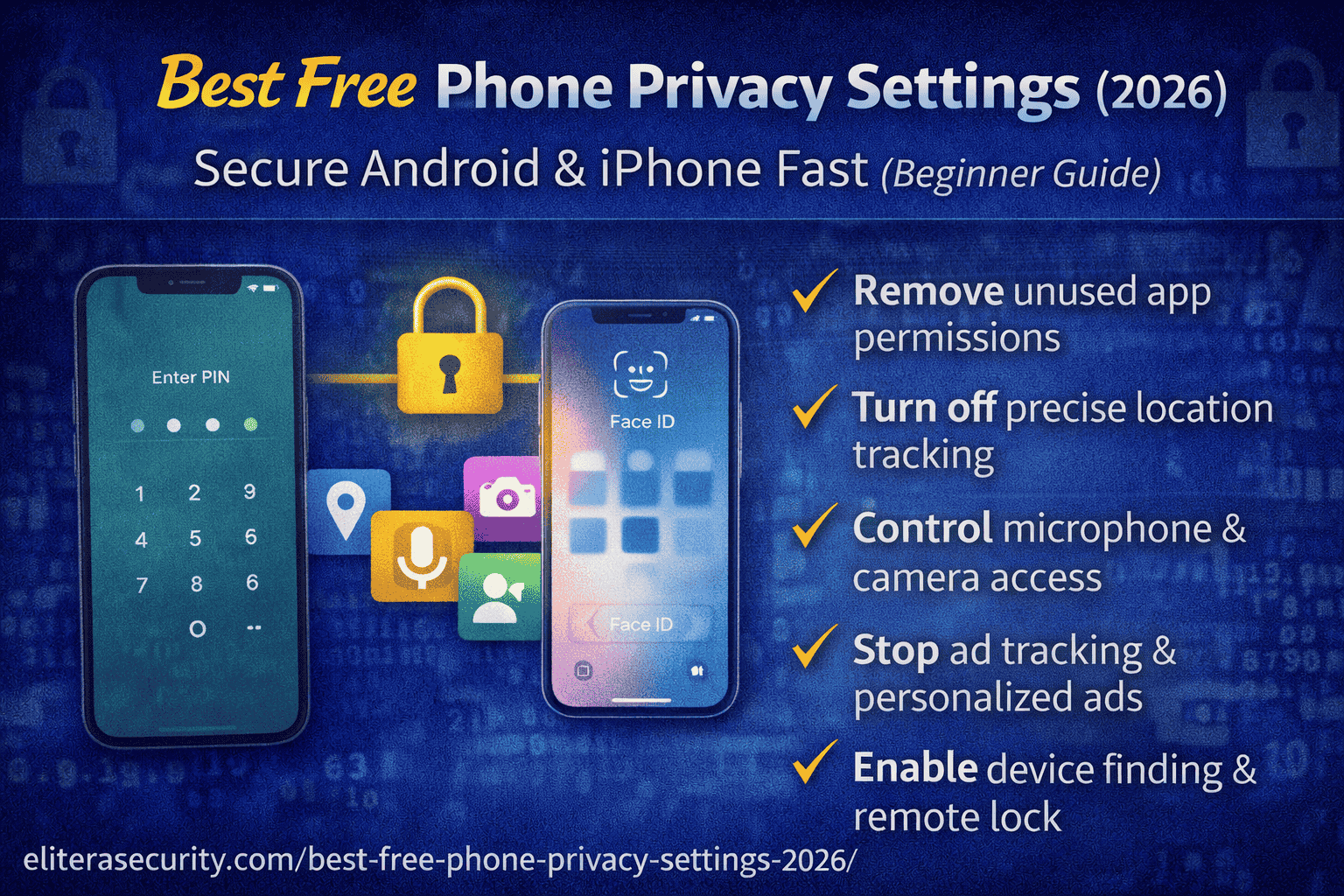
Best Free Phone Privacy Settings (2026): Android and iPhone Security in 15 Minutes
Most people think “privacy settings” are only for tech experts. In reality, your phone privacy settings decide whether apps can track you, read your contacts, access your microphone, see your location 24/7, or quietly collect data in the background. In 2026, a lot of scams and account takeovers don’t start with “hacking.” They start with over-permissioned apps, weak privacy controls, and unsafe defaults.
The good news is you can dramatically improve your phone’s privacy and security in 15 minutes using free built-in settings.
Why phone privacy settings matter in 2026
Phones hold everything: photos, banking, OTP messages, emails, WhatsApp, and social media accounts. When your phone privacy is weak, three things become easier for attackers:
First, apps can collect more data than they need—contacts, location history, microphone access—which increases exposure if you install a bad app.
Second, scammy apps and adware can abuse permissions like Accessibility or Notification Access to read messages, steal OTPs, or overlay fake screens.
Third, tracking becomes easier. Even if you’re not “doing anything illegal,” constant tracking increases the chance of targeted scams, social engineering, and privacy loss.
Privacy settings are not about hiding. They are about control.
Quick 15-minute checklist
If you want the fastest “big impact” setup:
- Turn on a strong screen lock (PIN/password + biometric)
- Remove app permissions you don’t need (especially Location, Contacts, Photos, Microphone)
- Turn off ad tracking / personalized ads
- Disable “Install unknown apps” (Android)
- Review Notification Access and Accessibility permissions (Android)
- Enable device finding + remote lock/wipe
- Turn on automatic security updates
Now let’s do it properly, step-by-step.
Part A — Android privacy settings
1) Lock screen security: the foundation
Set a strong PIN (not 1234, not your birth year). Biometrics are fine, but keep a PIN as backup. This stops casual access if your phone is lost or borrowed “for one minute.”
If your phone supports it, enable the setting that hides sensitive notifications on the lock screen. That prevents OTP codes and private messages from appearing when the screen is locked.
2) Remove “dangerous permissions”
Apps often request permissions “just in case.” Many don’t need them.
Go to Settings → Privacy → Permission Manager (wording varies) and review these categories carefully:
Location: Keep it “While using the app” for maps/ride apps. Set it to “Deny” for games, photo editors, wallpapers, and random tools. If an app wants location “All the time,” question it.
Microphone & Camera: Only allow for apps that truly need it (calls, camera apps). If a random app wants microphone access, deny it.
Contacts: Avoid giving contacts access unless you must. Contacts are valuable for scams and spam.
Photos/Files: Prefer “Selected photos” or limited access when possible.
A simple rule: if the app still works without a permission, keep it denied.
3) Turn off “Install unknown apps”
A lot of Android malware arrives as an APK downloaded from a link (WhatsApp/SMS “update,” “premium app,” “video player,” etc.). You can block this route by disabling unknown installs.
Go to Settings → Security and make sure installing apps from unknown sources is disabled. Only use the Play Store for apps.
4) Check Accessibility and Notification Access
These two permission areas are where serious scams happen.
Accessibility can allow an app to control your screen, read text, click buttons, and observe what you do.
Notification Access can allow an app to read notifications—sometimes including OTPs and security alerts.
Go to Settings → Accessibility and Settings → Notification access and disable any app you don’t 100% trust. Most normal apps do not need these.
If you ever installed “cleaners,” “boosters,” mod apps, or unknown VPNs—check these settings immediately.
5) Disable ad personalization
Android/Google provides ad personalization controls. Turning them off reduces tracking and targeted ads.
In privacy settings, turn off ad personalization and reset your advertising ID if available. This won’t remove all ads, but it reduces profiling.
6) Turn on “Find My Device” and remote lock/wipe
This protects you if your phone is stolen. Enable Find My Device and make sure location services are enabled for it.
Then test it once: confirm you can see your device in the Find My Device service and that remote lock works.
Part B — iPhone privacy settings
1) Strong passcode + Face ID/Touch ID
Use a strong passcode (avoid 0000/1111). In 2026, the most common iPhone risk is not “iPhone virus.” It’s someone getting physical access or tricking you into giving codes.
Enable Face ID/Touch ID, but keep a strong passcode.
2) App Tracking Transparency: turn off cross-app tracking
On iPhone, many apps ask to “track you across apps and websites.” You should block this unless you truly want it.
Go to Settings → Privacy & Security → Tracking and disable tracking requests or deny per app. This reduces ad profiling and tracking behavior.
3) Location Services: limit to “While using”
Go to Settings → Privacy & Security → Location Services and review apps:
- Use “While Using the App” for maps/ride apps
- Turn off location for apps that don’t need it
- Review “Precise Location” and disable it for apps that don’t require accuracy
This reduces location history exposure and targeted tracking.
4) Microphone, Camera, Photos permissions
In iPhone settings, review which apps can access:
- Microphone
- Camera
- Photos (prefer limited access when possible)
- Contacts
If you don’t remember granting it, remove it. Apps will ask again if they truly need it.
5) Safety feature that helps a lot: device finding and theft protection
Enable Find My iPhone (Find My). This allows locating, locking, or wiping the device if stolen.
Also review Apple ID security: ensure 2FA is enabled and your recovery methods are correct.
6) Turn on iOS updates
Many users delay updates for months. Updates fix security issues and reduce risk from known vulnerabilities.
Enable automatic updates if you can, or set a weekly reminder to update.
The most common privacy mistakes
Many people break privacy with these habits:
They install random “free VPN,” “phone cleaner,” or “battery saver” apps. Many are adware or data collection tools.
They allow notification permissions on websites (“Allow notifications to continue”). That leads to fake virus alerts and scam spam.
They reuse the same password across accounts. Phone privacy helps, but account security still matters.
They keep location on “Always” for apps that don’t need it.
If you avoid these mistakes and tighten permissions, your phone becomes much safer.
What to do if you think an app is spying or your phone is compromised
If you suddenly see weird behavior—battery drain, random popups, unknown apps, permissions changing—do this safely:
First, uninstall suspicious apps you installed recently.
Second, review Accessibility and Notification Access (Android) or permission lists (iPhone) and remove anything suspicious.
Third, run a security scan if available (Android) and update the OS.
If the problem continues and you suspect serious compromise, back up important files and consider a factory reset (only if necessary). After reset, install apps only from official stores.
FAQs
1) Will changing privacy settings break my apps?
Usually no. Most apps work fine with limited permissions. If an app truly needs access, it will ask again when required.
2) What is the most dangerous permission on Android?
Accessibility and Notification Access are high-risk because they can enable screen control and OTP reading. Disable them for any app you don’t fully trust.
3) Is turning off ad tracking worth it?
Yes. It reduces profiling and targeted advertising. It won’t eliminate ads, but it reduces how much data is used to track you.
4) Should I keep Location Services on all the time?
Keep location on, but limit access per app. Most apps should be “While using” only.
5) Is iPhone automatically safe from scams?
iPhones are generally secure, but scams still work through phishing links, fake support calls, and stolen passcodes. Settings help, but safe habits matter too.
About The Author




