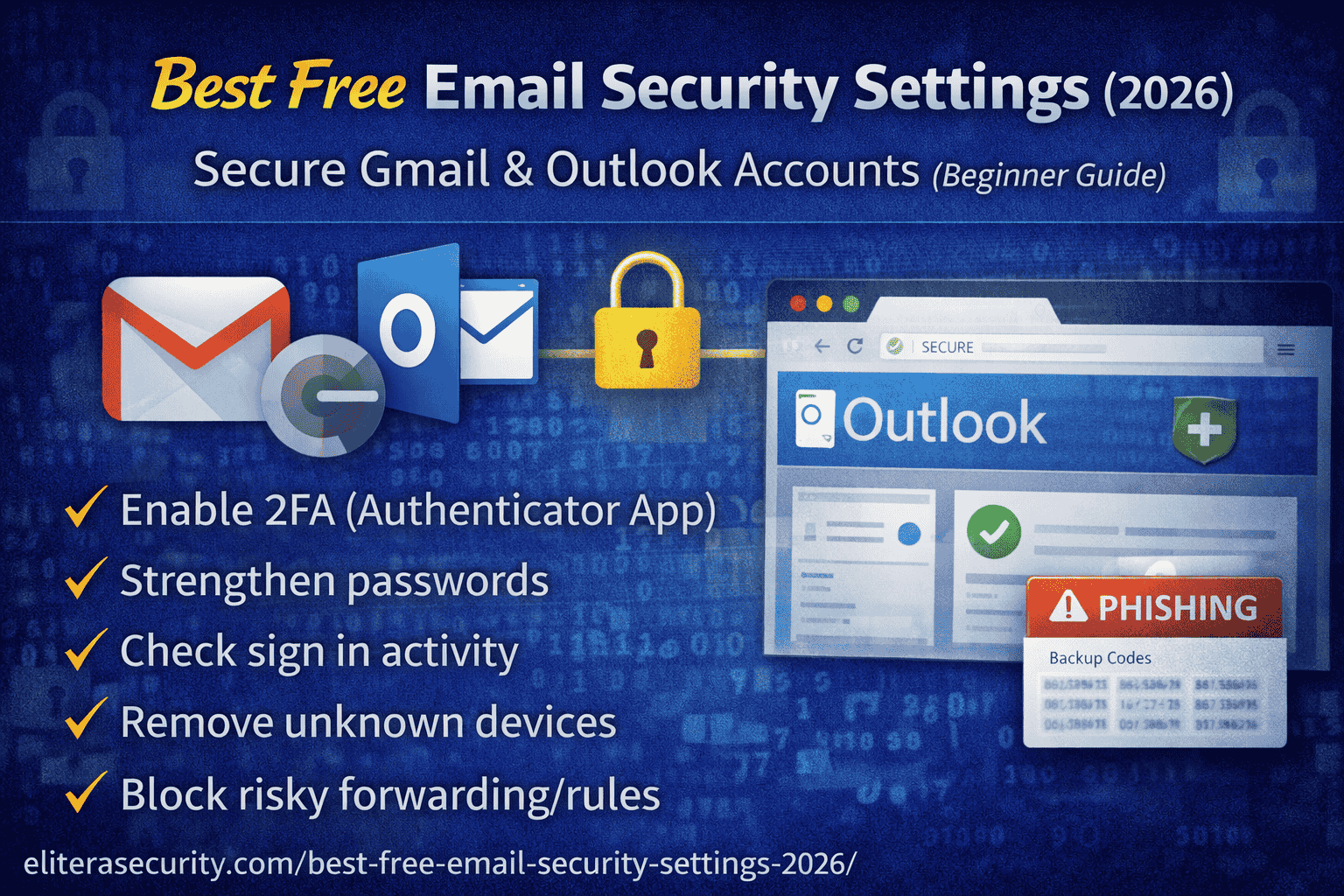
Best Free Email Security Settings (2026): Secure Gmail & Outlook
Your email is the “master key” to your digital life. If someone gets into your Gmail or Outlook, they can reset your passwords for Facebook, Instagram, banking apps, shopping accounts—almost everything. That’s why many hacks don’t start with your social media or your bank. They start with email.
The good news is you don’t need paid tools to secure your email. In 2026, most people can dramatically reduce risk using free built-in settings inside Gmail/Outlook plus a few simple habits.
Why email is the #1 target
Attackers love email for three reasons.
First, email controls password resets. If an attacker can access your inbox, they can click “Forgot password” on dozens of services and take over accounts quickly.
Second, email contains sensitive data. OTP codes, invoices, bank alerts, login confirmations, job documents, and identity information often sit in inboxes for years.
Third, email is where phishing lands. Most phishing scams aim to steal your email password because it opens the door to everything else.
If you protect your email, you protect your whole online identity.
The biggest email threats in 2026
Most email attacks fall into these categories:
Phishing emails: fake messages that push you to click a link and log in on a fake page.
Spoofing: emails that look like they’re from your bank or a brand, but the sender address is fake or manipulated.
Credential stuffing: hackers try leaked passwords from old breaches on your email account.
Session hijacking: if someone steals cookies or uses a compromised device, they can log in without your password.
Recovery takeover: attackers try to access your recovery phone/email to reset your password.
Good settings reduce these risks a lot.
The safest free setup
If you want the best “free email security” setup:
- Use a strong unique password (not used anywhere else)
- Turn on Authenticator App 2FA (not SMS)
- Review recovery email + phone (make sure they are yours and protected)
- Turn on security alerts and check recent devices
- Block risky behavior: auto-forwarding, unknown app access, suspicious rules
That’s the core. Now let’s do it properly.
Part A — Secure Gmail for free
1) Turn on 2FA using an Authenticator App
SMS codes are better than nothing, but authenticator apps are safer because SIM swap scams exist. When you enable authenticator-based 2FA, even if someone steals your password, they still can’t log in easily.
In Gmail, go to your Google Account security settings and enable 2-Step Verification, then choose Authenticator app.
After enabling, save your backup codes safely (not as a screenshot).
2) Check “Recent security activity” and remove unknown devices
Many people are already compromised without realizing it. Gmail shows recent sign-ins and device activity.
If you see a device you don’t recognize, sign it out immediately and change your password. If the attacker still gets in after that, your device might be infected or your recovery method may be compromised.
3) Secure your recovery options (recovery email + phone)
Recovery methods are a common weak spot. If your recovery email is old, hacked, or not yours anymore, an attacker can use it to reset your Gmail.
Make sure:
- recovery email belongs to you and is secured with 2FA
- recovery phone number is correct and protected (SIM PIN if possible)
Your email is only as secure as its recovery methods.
4) Remove “third-party app access” you don’t need
Sometimes users give access to random apps for “email cleaner,” “PDF converter,” “resume builder,” or “free trial” tools. These apps can read email content or metadata.
In Google settings, review connected apps/services and remove anything you don’t trust or don’t use.
5) Stop dangerous auto-forwarding
Forwarding is a favorite attacker trick. They compromise your email, then silently forward copies of emails to themselves, so even if you recover your account, they still receive new emails.
Check Gmail settings for:
- forwarding addresses you didn’t add
- filters that forward messages automatically
- “Send mail as” addresses you didn’t configure
If you find anything suspicious, remove it and change your password.
Part B — Secure Outlook / Hotmail for free
Outlook has the same core approach: strong password, 2FA, device review, recovery security, and rule cleanup.
1) Enable 2FA (Authenticator App preferred)
Turn on Microsoft’s 2-step verification. Use Microsoft Authenticator if possible.
This blocks most login attempts from password leaks.
2) Review “Sign-in activity”
Outlook/Microsoft accounts show sign-in activity including location and device type.
If you see repeated failed attempts from unfamiliar regions, that’s a sign your password has been leaked and attackers are trying it. Change your password immediately and keep 2FA enabled.
3) Check your inbox rules and forwarding
Attackers often set inbox rules to hide their activity. For example, they create a rule that moves “security alert” emails into Deleted Items or forwards banking emails to another address.
Review rules and forwarding and delete anything you didn’t create.
4) Remove unknown connected apps
Just like Google, Microsoft accounts can have connected apps/services. Remove suspicious ones.
Part C — Free anti-phishing habits that actually work
Security settings are powerful, but phishing succeeds when people rush. These habits reduce risk massively:
1) Don’t click “urgent” links inside emails
If a message says “Your account will be disabled today” or “Verify now,” don’t click. Open the official app or type the website manually.
This single habit blocks most phishing attempts.
2) Never share OTP codes
Banks, Google, Microsoft, and real support teams do not ask for your OTP. If someone asks, it’s almost always a scam.
3) Use a password manager (free versions are enough)
Most people reuse passwords because they can’t remember them. A password manager fixes that problem. Unique passwords prevent credential-stuffing attacks.
4) Keep one “clean device” for your email (optional but strong)
If you often download random software or browse risky sites, keep email access limited to your phone + one trusted laptop. This reduces the risk of session theft.
Part D — If you think your email is being hacked
If you suspect compromise, act in this order:
First, change your email password immediately (from a clean device if possible).
Second, enable authenticator-based 2FA (or re-enable it if it was removed).
Third, sign out of all devices/sessions.
Fourth, check forwarding and inbox rules and remove anything suspicious.
Fifth, check recovery email/phone and update them if needed.
Finally, scan your PC for malware if you suspect your device is infected.
This sequence blocks most active takeovers.
FAQs
1) Is SMS 2FA enough for email security?
It’s better than nothing, but authenticator-based 2FA is safer because SIM swap scams can intercept SMS codes.
2) Why do attackers target email instead of Facebook first?
Because email can reset Facebook. Email is the master key.
3) What are the signs my Gmail/Outlook is compromised?
Unknown devices in security activity, emails marked read that you didn’t open, missing security alerts, unknown forwarding addresses, and unexpected password reset emails.
4) Should I use the same password for email and other sites?
No. Email must have a unique password. If any other site leaks your password, attackers will try it on your email.
5) Can I stop spoofed emails completely?
You can reduce them by relying on spam filters, not trusting display names, and verifying “urgent” messages through official apps. Spoofed emails often fail when you check the real sender and avoid clicking.
6) What if I lost access to my authenticator app?
Use your backup codes or account recovery options. This is why saving backup codes is essential.
About The Author




