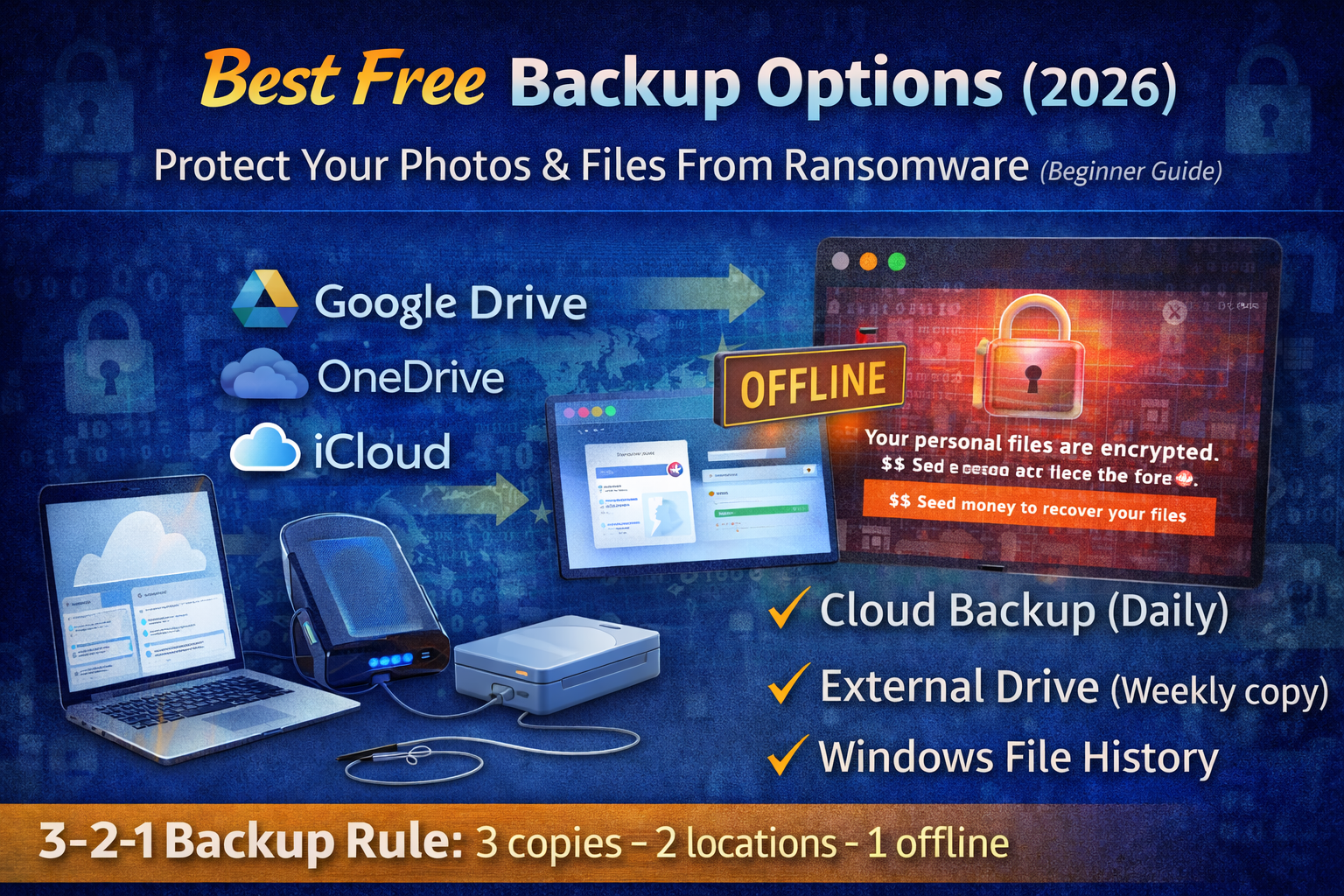
Best Free Backup Options (2026): Protect Your Photos & Files From Ransomware
Most people only think about backups after something painful happens: a laptop crash, accidental deletion, a stolen phone, or ransomware that suddenly locks your files. In 2026, backups aren’t just “nice to have.” They are your last line of defense—because once files are gone (or encrypted), recovery is often expensive, stressful, and sometimes impossible.
The good news is you can build a strong backup system for free using tools you already have: Windows built-in backup features, free cloud storage, and a simple external drive routine.
What “backup” really means
A backup is a safe copy of your important data—photos, documents, videos, and project files—stored somewhere separate from your main device.
A real backup must protect you from these common problems:
- Accidental deletion (you deleted a folder and emptied recycle bin)
- Device failure (hard drive crash, laptop won’t start)
- Theft or loss (phone stolen, laptop lost)
- Malware & ransomware (files get encrypted or corrupted)
- Account issues (cloud account locked or hacked)
If your backup is stored on the same device only, it’s not a real backup. If ransomware hits, it can encrypt that too.
The best backup rule (the one that actually works)
Use the 3–2–1 backup rule (simple version):
- Keep 3 copies of your important files
- Store them on 2 different types of storage (PC + external drive, or PC + cloud)
- Keep 1 copy offline (external drive not always connected)
This is the easiest way to stay safe from ransomware.
What’s the best free backup setup for most people?
If you want a strong “set and forget” system:
- Cloud backup for daily protection (Google Drive / OneDrive / iCloud free tier)
- External drive backup weekly (offline after completion)
- Windows File History (automatic local versioning)
That gives you cloud + offline + version history, without paying.
Best free backup options in 2026
1) Google Drive (Free tier) — best for photos + documents
Google Drive is easy for beginners and works well across Android, Windows, and browsers. It’s excellent for documents, PDFs, and important folders. If you’re using Android, your Google account also helps with basic phone backup and device recovery.
Best for: documents, photos, students, freelancers
Why it’s good: easy sharing + access everywhere
Watch out: if your Google account gets hacked, your backup is at risk—use 2FA.
2) Microsoft OneDrive (Free tier) — best for Windows users
OneDrive is deeply integrated into Windows 11/10. It can automatically sync important folders like Desktop, Documents, and Pictures (depending on your settings). For many Windows users, this is the simplest “automatic cloud backup” option.
Best for: Windows laptops/PCs
Why it’s good: built into Windows, smooth file sync
Watch out: avoid syncing junk folders—sync only what matters.
3) iCloud (Free tier) — best for iPhone users
If you use iPhone, iCloud is the default and easiest way to protect contacts, photos, and basic device data. Even on the free tier, it can protect essentials and reduce the pain of losing your phone.
Best for: iPhone users
Why it’s good: automatic device-level backup behavior
Watch out: enable account security and 2FA.
4) Windows File History (Free) — best free “automatic local backup”
File History is a Windows feature that automatically backs up versions of your files to an external drive. If you delete a file or overwrite it, you can restore an older version. This is a powerful protection against accidental deletion and some ransomware scenarios.
Best for: Windows users with an external drive
Why it’s good: automatic, version history, easy restore
Watch out: your external drive should not stay connected 24/7.
5) External Drive Manual Backup (Free) — best ransomware protection
A simple external USB drive backup is still one of the strongest defenses against ransomware—because it can be kept offline. No subscription. No account. Just a clean copy you control.
Best for: everyone
Why it’s good: offline protection, large storage, simple
Watch out: keep it unplugged when not backing up.
How to build a ransomware-safe backup system
Step 1: Decide what you must protect
Most people don’t need to back up the whole PC. Focus on what cannot be replaced:
- Photos and videos
- Documents (CVs, certificates, PDFs)
- Work files (projects, designs, code)
- Password manager vault export (if applicable)
- Important folders like Desktop/Downloads only if you store important data there
Keep your backup clean. Backing up everything—including junk—makes restore harder.
Step 2: Turn on cloud sync for your most important folders
Choose one cloud service and put your important folders inside it. For beginners, the simplest approach is to create a folder named:
“Important Backup”
…and inside it: Photos, Documents, Work, IDs, Certificates.
Cloud backup protects you from device failure and loss. But cloud alone is not enough for ransomware—because ransomware can encrypt files and the encrypted versions may sync too.
That’s why you also need an offline copy.
Step 3: Set up an external drive weekly backup (offline after)
Get an external drive (any basic one works). Once a week:
- Plug it in
- Copy your “Important Backup” folder to the drive
- Safely eject the drive
- Keep it unplugged
That “unplugged” step is what makes it ransomware-safe.
Step 4: Enable Windows File History (Windows 11/10)
If you’re on Windows and you have an external drive:
- Connect the drive
- Search “File History” in Windows settings/control panel
- Turn it on and select the drive
- Include Documents/Pictures/Desktop (as needed)
File History helps you restore earlier versions of files, which is useful for accidental deletion and “oops I overwrote it” situations.
Step 5: Protect the backup accounts (this matters)
Your backup is only as safe as the account that holds it. Secure your Google/Microsoft/Apple account:
- Use a strong password (unique)
- Enable 2FA (authenticator app)
- Save recovery codes safely
If you lose your email account, you can lose access to backups too.
Common backup mistakes
Many people think they have backups but they don’t. Here are the most common mistakes:
Some people sync everything to cloud and assume they’re safe. But if ransomware encrypts files, those encrypted versions can sync too. That’s why offline backups matter.
Some people keep the external drive connected permanently. If malware hits, it can encrypt that drive too. Keep the drive unplugged when not backing up.
Some people only back up once a year. Backups should match how often your data changes. Weekly is enough for most people; daily if you work heavily on documents.
Some people forget to test restoring. A backup is only real if you can restore files from it.
How to test your backup
Testing takes 2 minutes and saves you from disaster later.
Pick one file (like a photo or PDF) and pretend it’s lost:
- Delete it from your PC (or move it somewhere temporary)
- Restore it from your cloud folder or external drive
- Confirm it opens correctly
Now you know your backup works.
What to do after ransomware
If your files are encrypted, don’t rush to pay. First:
- Disconnect the PC from the internet
- Do not connect your backup drive
- Clean the PC (malware removal)
- Then restore from an offline backup
If you restore before cleaning, the infection may re-encrypt your restored files.
FAQs
1) Is free cloud storage enough for backup?
It’s a good start, but cloud alone is not enough for ransomware. You need at least one offline copy (external drive) for strong protection.
2) What is the best free backup method for Windows?
A strong free combo is: OneDrive (cloud sync) + Windows File History (external drive) + weekly offline copy.
3) How often should I back up?
Weekly is enough for most people. If you work daily on important files, do daily cloud sync and weekly offline backup.
4) Can ransomware encrypt my external hard drive?
Yes—if it’s connected. That’s why you should unplug the drive after backup.
5) What should I back up first?
Start with Photos, Documents, and anything you cannot replace (IDs, certificates, work projects).
About The Author




