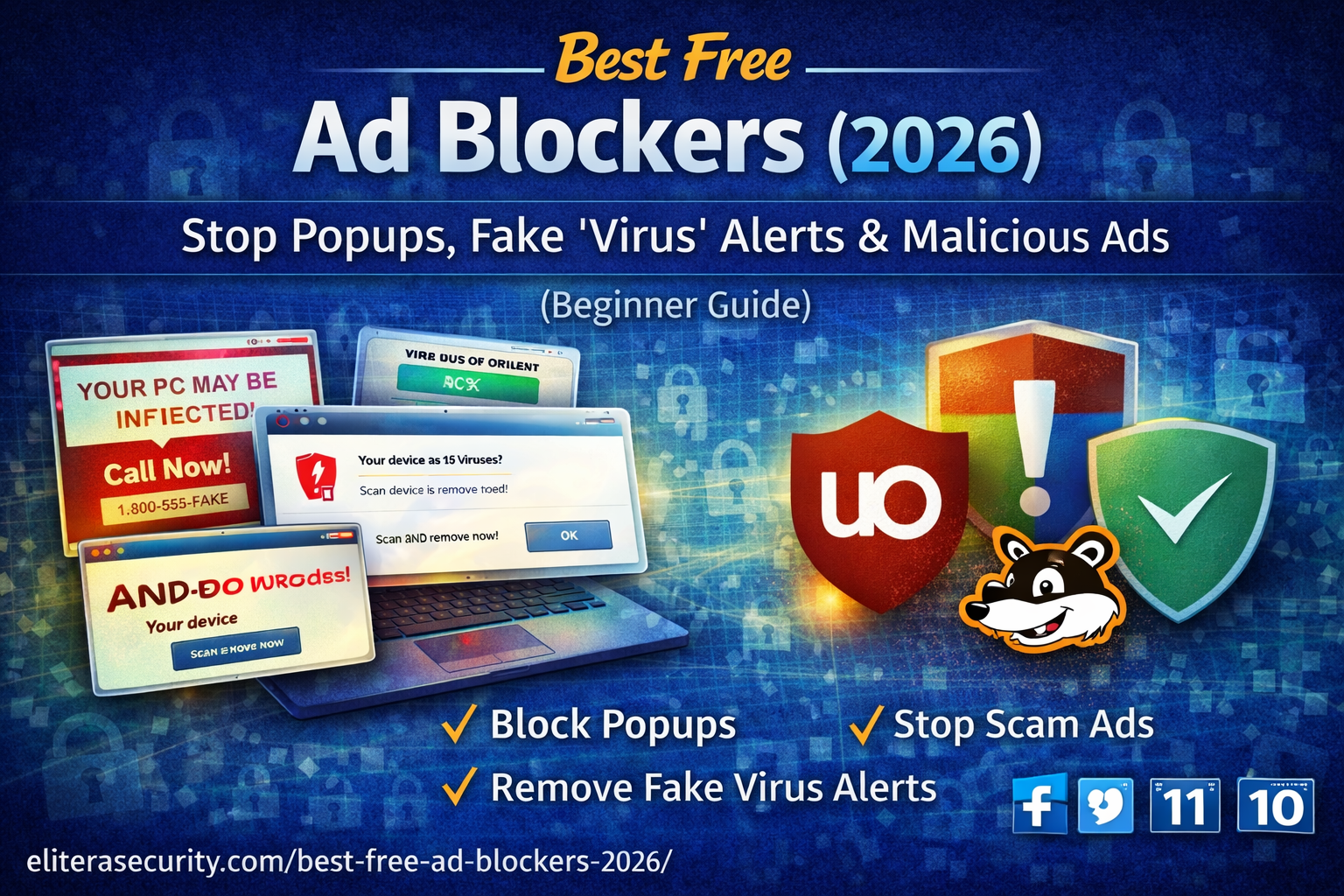
If you’ve ever seen a scary pop-up that says “Your PC is infected! Call support now” or “Your phone has 17 viruses”, you’ve already met one of the most common online threats in 2026: malvertising (malicious advertising). These ads don’t need to “hack” you with Hollywood-style code. They trick you into clicking, installing junk, allowing notifications, or entering passwords on fake pages.
A good free ad blocker reduces these risks immediately. It blocks intrusive ads, stops many tracking scripts, and helps prevent you from landing on dangerous pages through shady banners or fake download buttons.
What an ad blocker actually does
An ad blocker is a browser extension or app that stops ads and tracking scripts from loading. This gives you three big benefits:
First, your browser becomes safer because many scams start from ads—especially on streaming sites, cracked software pages, and fake “download” buttons.
Second, you get fewer distractions: fewer banners, fewer autoplay videos, and fewer “click here to continue” traps.
Third, many sites load faster because the browser downloads less junk.
But an ad blocker is not a full antivirus. It can reduce your exposure to dangerous content, but it cannot protect you if you willingly install unknown software or type your password into a phishing website. Think of it like a seatbelt: it reduces harm, but you still need to drive carefully.
Why ad blockers are even more important in 2026
A lot of people assume only “illegal websites” show harmful ads. That’s not always true. Malicious ads can appear anywhere if an ad network gets abused, if a site uses risky ad partners, or if scammers buy ads and redirect users. The most common damage happens when:
- a fake “update” ad tricks you into installing malware
- a “system alert” popup pressures you to call a scam number
- a banner pushes a fake extension or fake security app
- a “Download” button leads to the wrong file
A reliable ad blocker reduces all of these.
Best free ad blockers
There are many ad blockers, but only a few are consistently trusted and widely recommended by security-focused users. These are the best free choices for most people:
1) uBlock Origin (Best overall free ad blocker)
uBlock Origin is lightweight, powerful, and very effective against popups and tracking. It’s considered the best “set it and forget it” option for most users.
It blocks ads without slowing your browser, and it doesn’t try to push you into a paid subscription every day. For people who want maximum protection and fewer distractions, this is usually the top choice.
2) AdGuard (Free options available)
AdGuard has strong ad-blocking technology and often offers free browser extensions. It’s popular for users who want a clean interface and strong filtering.
It can be a good alternative if you prefer its design and controls.
3) Privacy Badger (privacy-first add-on)
Privacy Badger focuses more on trackers and privacy than “every single ad.” It’s a solid add-on for people who care about tracking protection, but for maximum popup blocking, uBlock Origin is usually stronger.
4) Built-in tracking protection (good extra layer)
Some browsers (and privacy-focused browsers) already block many trackers. That’s helpful, but it’s usually not enough by itself to stop aggressive ads, fake download buttons, and popup chains. You’ll still benefit from a dedicated ad blocker extension.
Which ad blocker should you choose?
If you want the simplest correct answer:
Choose uBlock Origin.
If you want a clean interface and different controls:
Try AdGuard’s browser extension.
If your main goal is anti-tracking:
Add Privacy Badger (optional) but don’t rely on it alone for malicious popups.
How to install an ad blocker safely
Ad blocker scams are common. Fake extensions copy popular names and trick people into installing spyware.
Follow these safety rules:
Install only from your browser’s official extension store (Chrome Web Store / Microsoft Edge Add-ons / Firefox Add-ons).
Avoid “download this ad blocker EXE” websites. Real browser extensions don’t require you to download a random installer.
Check the publisher name and reviews. If an extension has a suspicious publisher or looks new with low trust, skip it.
After installing, restart the browser and test it on a site that usually shows ads. You should see fewer banners immediately.
Best settings to stop popups and “fake virus alerts”
Many people install an ad blocker but still see popups. That usually happens because popups are not only ads—sometimes they are browser permissions and notification abuse.
Step 1: Block notification permissions
Those “Allow notifications to continue” prompts are often a scam. When you click Allow, the website can spam your desktop with fake virus alerts even when the browser is closed.
Go to your browser settings and remove notification permissions for unknown sites. If you see websites you don’t recognize, remove them immediately.
Step 2: Turn on built-in popup blocking
Most browsers already have popup blocking. Keep it turned on. It works together with your ad blocker.
Step 3: Use the default filter lists
Good ad blockers use filter lists to recognize ads and trackers. The default settings are usually enough for normal users. Don’t enable 30 lists unless you understand them—too many can break websites or cause odd behavior.
If you still see popups after installing an ad blocker
If the problem continues, the issue may not be “ads.” It may be adware, a bad extension, or browser hijacking.
Here’s how to diagnose it in a simple way:
If popups appear only on one website, that website is likely using aggressive ads or you allowed notifications there. Remove notifications and keep your blocker on.
If popups appear on many websites, check your extensions and remove anything you didn’t install intentionally.
If your browser redirects when you search, you may have a browser hijacker or adware installed on your PC. In that case, you should follow your malware removal guide (Defender + Malwarebytes + AdwCleaner) and reset your browser.
Ad blockers and YouTube: what to expect in 2026
YouTube continues to fight ad blocking. Depending on your region and account, you might see warnings or playback issues if you use aggressive ad blocking.
If YouTube breaks, don’t uninstall your blocker immediately. Instead:
Try disabling the blocker only on YouTube, or use a lighter mode for that site.
Keep ad blocking enabled for the rest of the internet, where the risk of malvertising and scam popups is much higher.
Your goal is safety and clean browsing—especially on random websites.
Best “safe browsing” habits that work with ad blockers
Ad blockers reduce risk, but your behavior still matters. Most infections begin with one of these actions:
Clicking fake download buttons
Installing cracked software
Allowing notification prompts on random sites
Entering passwords after clicking links in SMS/email
If you keep your ad blocker enabled and follow a “no random downloads, no notification allow” rule, you reduce your risk dramatically.
FAQ
Are free ad blockers safe?
Trusted ones are safe when installed from official extension stores. Avoid unknown “ad blocker” apps and fake extensions.
Do ad blockers stop viruses?
They can prevent you from seeing many malicious ads and fake alerts, but they are not a replacement for antivirus.
Why am I still getting popups?
Usually because you allowed browser notifications for a scam site, or you have a bad extension/adware on your system. Remove notification permissions, clean extensions, and scan for adware.
Which is best for beginners?
uBlock Origin is the simplest and strongest free choice for most people.
About The Author




