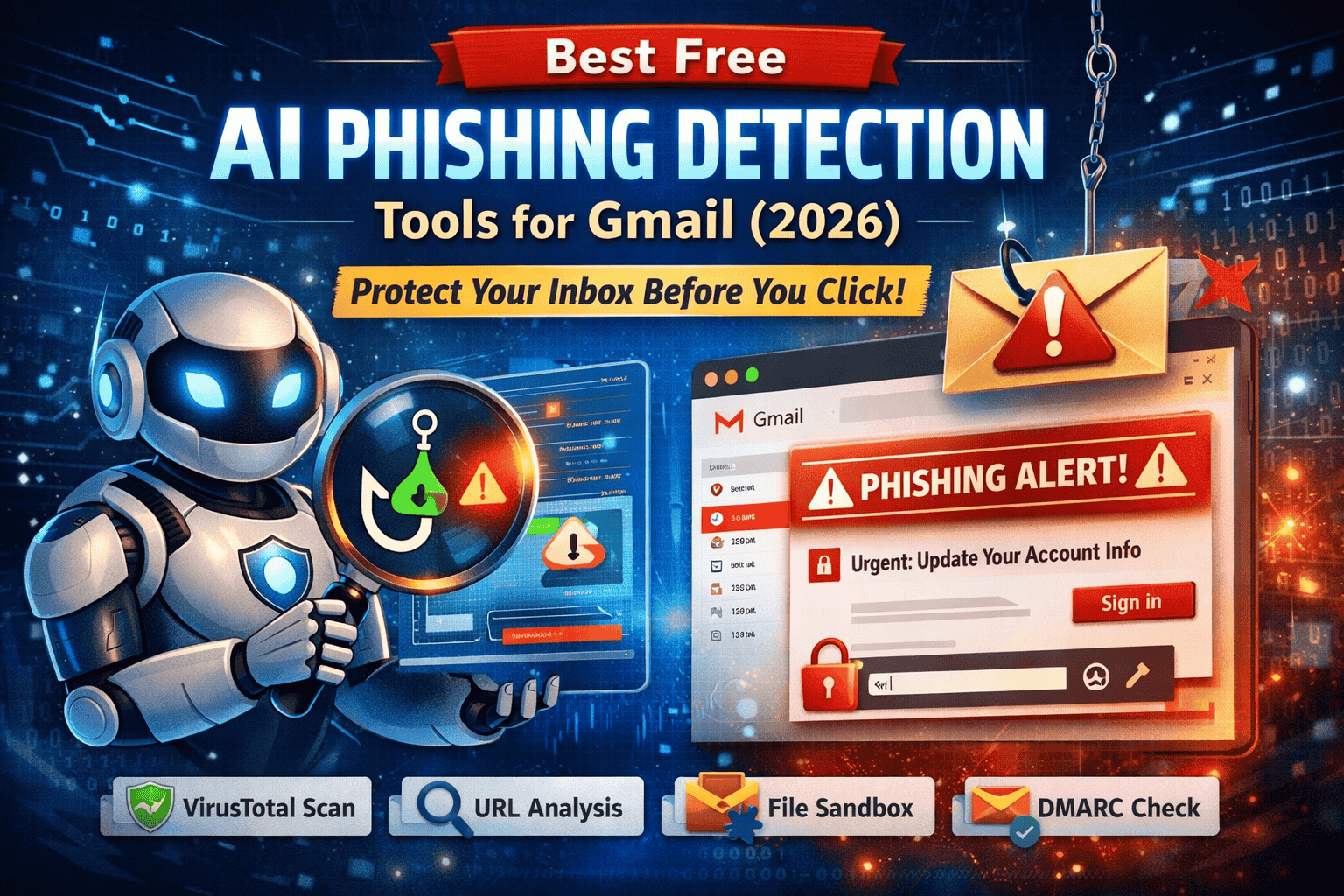
Best Free AI Phishing Detection Tools for Gmail (2026): Protect Your Inbox Before You Click
Phishing emails in 2026 don’t look “spammy” anymore. Attackers now use AI-written messages, cloned branding, clean grammar, and realistic urgency to trick Gmail users into clicking links or opening attachments. Even careful people get caught because modern scams feel like real Google alerts, invoices, shared documents, or support tickets.
The good news is you don’t need expensive enterprise security to stay safe. With the right best free AI phishing detection tools for Gmail, you can quickly verify suspicious emails, scan links, preview pages safely, analyze attachments in sandboxes, and confirm whether a sender is legitimate before you click.
Best Free AI Phishing Detection Stack for Gmail (2026)
If you want a simple toolkit you can start using today, here’s the best free stack:
- VirusTotal (Free Tier) – Scan suspicious links and attachments with multi-engine intelligence
- urlscan.io (Free) – Preview a link safely (screenshots, redirects, scripts)
- Hybrid Analysis / ANY.RUN (Free Tier) – Sandbox suspicious attachments and URLs
- Google Safe Browsing signals (Free) – Reputation-based protection across the web
- MXToolbox / SPF-DKIM-DMARC checkers (Free) – Verify sender authentication
- Gmail security settings (Free) – Enable the protections most people forget
Below you’ll learn how each tool works and how to use them together in a fast routine.
Why Gmail Users Still Get Phished in 2026
Gmail has strong filtering and machine learning, but phishing succeeds because attackers exploit human decision-making, not just technology. Many successful phishing emails include:
- Urgency (“Your account will be suspended today”)
- Authority (fake “Google Security Team”, “HR”, “Support”, “CEO”)
- Fear (“Unusual login detected—verify now”)
- Curiosity (“You have a secure document waiting”)
- Convenience (a big button that looks safe)
Modern phishing also uses:
- Lookalike domains (e.g., tiny spelling changes)
- Shortened URLs to hide destinations
- Cloned login pages that steal credentials
- HTML/PDF attachments with embedded links
- Reply-To tricks where replies go to a different address than the sender
That’s why your best defense is a repeatable verification process backed by free tools.
Best Free AI Phishing Detection Tools for Gmail (2026)
1) VirusTotal : AI-Assisted Link & Attachment Scanning
VirusTotal is widely used by analysts because it combines signals from many engines and reputation sources. It’s not “one scanner”—it’s a multi-source verdict that helps you quickly judge risk.
Best for:
- Checking suspicious URLs before clicking
- Scanning attachments before opening
- Seeing whether a domain is widely flagged or newly suspicious
How to use safely with Gmail:
- Don’t click the link—copy it (hover on desktop, long-press on mobile)
- Paste into VirusTotal’s URL scanner
- If there’s an attachment, scan it before opening (avoid uploading sensitive/private docs)
How to interpret results:
- If multiple engines flag it, treat it as phishing
- If only one flags it, don’t assume it’s safe—look for signs like new domain, suspicious redirects, or mismatched brand
2) urlscan.io (Free): “Open the Link” Without Opening It
urlscan.io fetches a URL in a controlled environment and shows you what the page actually loads. This is extremely useful for phishing, because it exposes fake login pages and redirect chains.
Best for:
- Seeing the page screenshot safely
- Checking the final destination after redirects
- Spotting cloned Google/Microsoft/Bank login pages
What to look for in urlscan results:
- The final domain (does it match the brand?)
- Redirects through strange domains
- A login form hosted on a non-official domain
- Suspicious scripts and trackers
If it looks like Google but it’s not on a Google-owned domain, it’s likely phishing.
3) Hybrid Analysis / ANY.RUN (Free Tier): Sandbox for Files & URLs
Sandboxes “detonate” suspicious files or links in a safe environment and report behavior. This is important when phishing uses attachments like PDFs, HTML files, ZIPs, or links that lead to hidden payloads.
Best for:
- Suspicious “invoice” attachments
- “Secure message” HTML attachments
- Unknown ZIP files
- Links you don’t trust but want to investigate safely
What sandboxes can reveal:
- Hidden scripts and malicious behavior
- Network calls to suspicious servers
- Dropped files or payloads
- Indicators of compromise (IOCs)
For everyday Gmail safety, sandboxing is your “extra layer” when VirusTotal isn’t conclusive.
4) Google Safe Browsing Signals (Free): Fast Reputation Check
Google’s ecosystem tracks malicious URLs at massive scale. Safe Browsing is powerful for known threats—but attackers sometimes use newly registered domains, so treat it as a strong signal, not a final verdict.
Best for:
- Fast “known-bad” checks
- Extra confidence when combined with VirusTotal + urlscan
5) MXToolbox + SPF/DKIM/DMARC Checkers (Free): Verify Sender Authenticity
A large share of phishing succeeds through sender impersonation. Authentication checks help you verify whether a domain is properly configured to prevent spoofing.
Key checks:
- SPF: Is the sending server authorized?
- DKIM: Is the email content cryptographically signed?
- DMARC: Does the domain enforce anti-spoofing policy?
How to use:
- Take the sender domain (e.g.,
example.com) - Check SPF/DKIM/DMARC records using a free checker
Important: A sophisticated attacker can still pass some checks, but failures—especially for famous brands—are a big red flag.
6) Gmail Built-in Settings (Free): Enable the Protections Most People Miss
Gmail security improves dramatically with correct account settings. Many account takeovers happen after a click because victims don’t have 2FA enabled—or because attackers add hidden forwarding rules.
Do this today:
- Enable 2-Step Verification (2FA)
- Review connected apps (remove anything you don’t recognize)
- Check filters and forwarding rules (phishers may add them to spy silently)
- Review recent security activity and devices
The 90-Second Gmail Phishing Verification Workflow
A tool list is helpful, but a workflow is what actually stops attacks. Use this simple routine whenever an email feels “off”.
Step 1: Analyze the Email Context
Read it like a detective. Ask:
- Is this message expected?
- Is it pressuring me to act fast?
- Is the request unusual (OTP codes, password reset, wire transfer, gift cards)?
- Does the email threaten consequences immediately?
Common red flags:
- “Your account will be suspended in 24 hours”
- “Confirm your password now”
- “We detected unusual activity” with a random link
- Unexpected attachments from unknown senders
Step 2: Inspect the Sender Details
Look beyond the display name.
- Check the actual email address
- Check if the domain matches the brand
- Look for subtle typos (extra letters, swapped characters)
Also watch for a Reply-To mismatch (the reply address is different than the sender).
Step 3: Copy the Link Without Clicking
On desktop:
- Hover to preview the real URL
- Right-click → copy link address
On mobile:
- Long-press the link → copy
Avoid “testing” the link directly—phishing sites can log your visit or trigger redirects.
Step 4: Scan the Link (VirusTotal + urlscan)
Use both:
- VirusTotal for reputation and multi-engine detection
- urlscan for screenshots + redirects + page behavior
If urlscan shows a login page for Google/Microsoft/banks on a non-official domain, treat it as phishing.
Step 5: Analyze Attachments Safely (If Any)
If there’s an unexpected file:
- Scan it with VirusTotal
- If uncertain, analyze with Hybrid Analysis / ANY.RUN (free tier)
High-risk attachment types:
.html“secure message” files.ziparchives- Unexpected “invoice.pdf” from unknown senders
- Office files prompting macros or “Enable content”
Step 6: Verify Sender Authenticity (SPF/DKIM/DMARC)
If the email claims to be from a major brand or your workplace but feels suspicious:
- Verify the sender domain’s authentication
Missing or weak authentication is a warning sign, especially for big brands.
Step 7: Decide & Act
If suspicious:
- Mark it as Phishing inside Gmail
- Do not reply
- Do not forward to friends (you may spread malware)
If you clicked:
- Follow the emergency steps below.
If You Clicked a Phishing Link
If you clicked or entered credentials, speed matters. Do this right now:
- Change your password immediately (and don’t reuse it elsewhere)
- Enable or reset 2FA
- Sign out of other sessions/devices
- Review recent security activity (unknown logins/devices)
- Remove suspicious connected apps with account access
- Check Gmail forwarding rules and filters
- Run a malware scan on your device if you downloaded anything
This can stop account takeover and prevent long-term email spying.
Common Gmail Phishing Scenarios to Watch in 2026
These are the most common themes used in phishing emails targeting Gmail users:
- Fake “Google Security Alert” or “unusual sign-in”
- “Your storage is full—upgrade now”
- “Password expiring today”
- “Document shared with you” (fake Google Docs notifications)
- “Invoice attached” or “payment failed”
- Fake customer support or verification messages
Attackers reuse these because they consistently work on busy people.
Why Free AI Phishing Detection Tools Are Enough for Most Users
Most Gmail users don’t need paid software. Free tools work well because they provide different perspectives:
- Reputation intelligence (VirusTotal)
- Visual confirmation and redirect analysis (urlscan)
- Behavior-based detonation for attachments (sandboxes)
- Sender authenticity checks (SPF/DKIM/DMARC)
When combined with a consistent workflow, they stop the majority of phishing attempts.
FAQs
Are free AI phishing detection tools reliable?
Yes—especially when you combine VirusTotal + urlscan + sandboxing for suspicious attachments.
Is it safe to upload files to scanning sites?
Avoid uploading sensitive or private files. For suspicious generic attachments, scanning is usually safe and common in security workflows.
Can Gmail block all phishing emails?
No. AI-generated phishing and newly created domains can bypass filters. Verification is still necessary.
What’s the biggest phishing mistake?
Clicking a link or opening an attachment before checking the destination and sender.
About The Author




