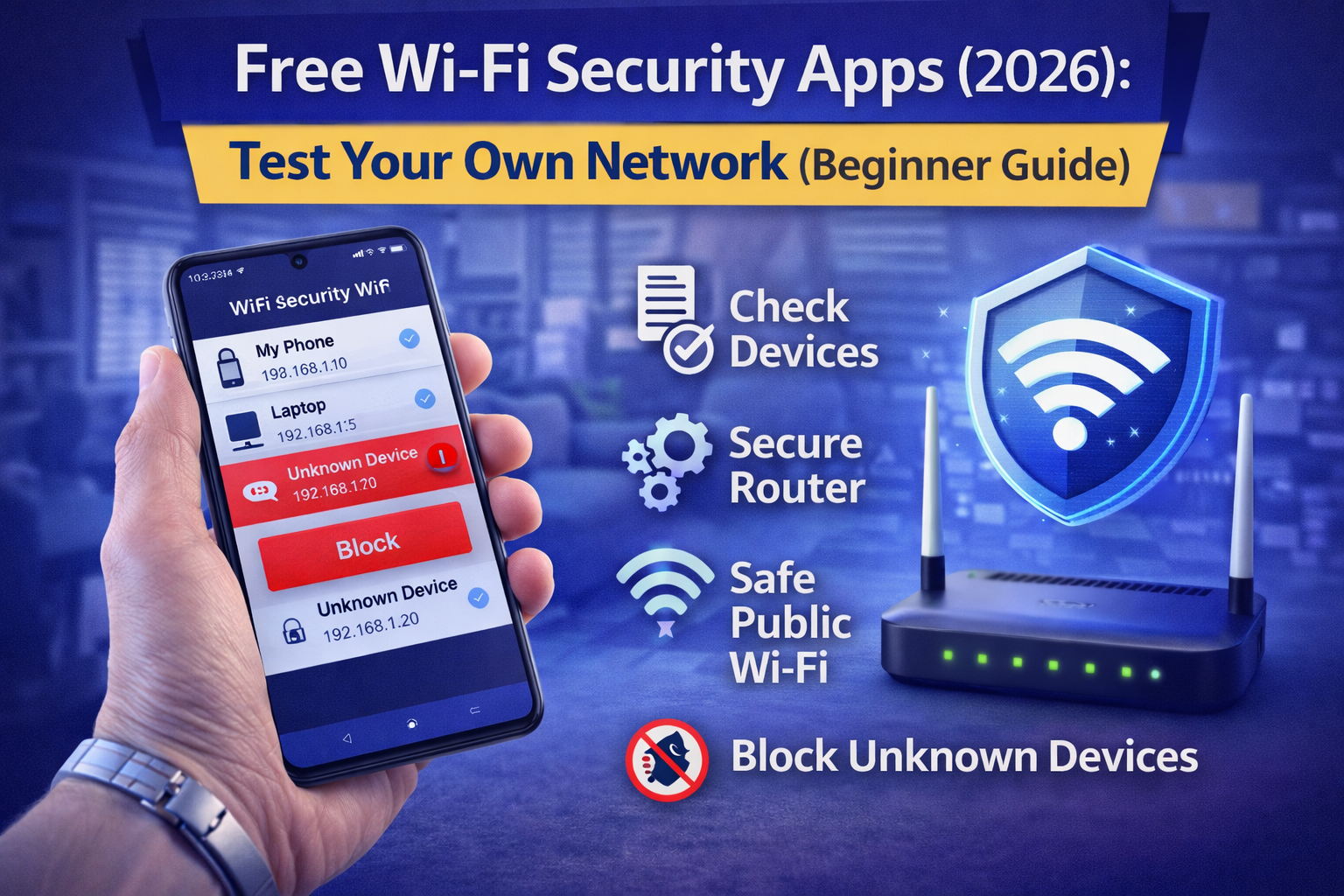
Free Wi-Fi Security Apps (2026): Test Your Own Network
If your Wi-Fi suddenly feels slow, your internet drops at night, or you notice unfamiliar devices in your router list, you’re not overthinking it. These are the exact signs people search when they suspect someone is using their Wi-Fi. The good news is you don’t need paid software or “hacking APKs” to fix it. With a few free Wi-Fi security apps and the right router settings, you can quickly check who’s connected, remove unknown devices, disable risky options like WPS, and lock your network down in minutes.
In this 2026 beginner guide, I’ll show you the safest apps to use, what they actually do (and what they can’t), and a simple step-by-step checklist to secure your home Wi-Fi and stay protected on public hotspots.
A good Wi-Fi security app helps with visibility and protection, not “hacking.”
It can help you:
✅ see who’s connected
✅ detect unknown devices
✅ improve router settings (WPA2/WPA3, WPS off)
✅ check signal/channel conflicts
✅ protect yourself on public Wi-Fi (VPN + safer browsing habits)
It cannot:
❌ magically “kick hackers” without you changing router settings
❌ detect malware inside devices reliably
❌ crack passwords legally/ethically
Best free Wi-Fi security apps (2026)
1) Fing (Network Scanner)
Best for: “Who is connected to my Wi-Fi?” + blocking unknown devices (via router steps)
Fing is the most beginner-friendly app for device discovery:
- shows connected devices
- identifies vendor (sometimes)
- helps you build a “known device list”
Use Fing when you want:
- quick scan of your Wi-Fi
- spot unknown devices
- rename your devices so you always recognize them
2) WiFi Analyzer (Channel / Signal Analyzer)
Best for: fixing slow Wi-Fi and preventing risky “range extender” setups
Why it matters for security: weak signal makes people use cheap extenders, default passwords, and unsafe setups.
WiFi Analyzer helps you:
- find channel congestion
- choose best router placement
- reduce interference
A stable Wi-Fi setup reduces “quick fixes” that often create security holes.
3) Your Router App (TP-Link / D-Link / Netgear / Xiaomi / etc.)
Best for: real security control
Most people skip this, but your router app is where real Wi-Fi security happens:
- change Wi-Fi password
- disable WPS
- enable WPA2/WPA3
- block devices
- see connected history (on some routers)
Pro tip: Your router app is more powerful than “Wi-Fi security” apps because it controls the network.
4) Cloudflare WARP (or any trusted VPN option)
Best for: safer browsing on public Wi-Fi
A VPN can help protect traffic from some local network threats (especially on open public Wi-Fi), but it’s not magic—phishing still works, and infected devices are still infected.
Use a VPN for:
- cafes/airports/hotels
- unknown networks
- travel situations
Don’t use random “free VPN” apps. Many are privacy risks. Choose reputable providers.
5) Password Manager App (Free tier)
Best for: protecting router admin password and account logins
Wi-Fi security fails when:
- router admin password is default
- passwords are reused
- people store passwords in notes
A password manager fixes this. (Internally link to your password manager article.)
Step-by-step: secure your Wi-Fi in 10 minutes (beginner workflow)
Step 1: Scan your Wi-Fi and list devices (1 minute)
Open Fing → scan your network.
Make 3 groups:
- Mine (my phone, my laptop, my TV)
- Family (parents, siblings)
- Unknown (anything you don’t recognize)
Rename devices inside Fing if possible (ex: “My iPhone”, “Brother Laptop”).
Step 2: If you see unknown devices, do this immediately (3 minutes)
- Open router app or router admin page
- Change Wi-Fi password
- Enable WPA2/WPA3 (prefer WPA3)
- Disable WPS
- Reconnect your devices
This is the fastest fix for “someone is using my Wi-Fi.”
Step 3: Secure the router admin account (2 minutes)
This is the most ignored step.
- Change router admin password
- Make it unique and long (store in password manager)
- Disable remote admin access unless you truly need it
If someone gets router admin access, they can:
- change DNS (redirect you to fake sites)
- view connected devices
- weaken encryption
- open remote access
Step 4: Update router firmware (2 minutes)
Router vulnerabilities are real. Updates close known security holes.
If your router supports auto-updates, enable them.
Step 5: Improve Wi-Fi channel / placement (2 minutes)
Use WiFi Analyzer:
- choose a less crowded channel
- move router away from walls/metal objects
- avoid placing it near microwaves or thick concrete
Better signal = fewer extenders = fewer insecure shortcuts.
Public Wi-Fi safety
If you use hotel/cafe Wi-Fi, follow this mini checklist:
- Use VPN (trusted)
- Avoid logging into banking on unknown Wi-Fi
- Turn off file sharing
- Keep auto-join off for public hotspots
- Prefer mobile hotspot for sensitive tasks
- Enable 2FA for critical accounts
And always watch for fake Wi-Fi names like:
- “Airport_Free_WiFi”
- “Hotel Guest WiFi”
Attackers often create lookalike hotspots.
FAQ
How can I check if someone is using my Wi-Fi?
Scan your network with Fing (or your router app), find unknown devices, then change Wi-Fi password and disable WPS.
Which is better: Fing or WiFi Analyzer?
Use Fing to see connected devices. Use WiFi Analyzer to fix signal/channel congestion. They solve different problems.
Can a Wi-Fi security app block a hacker?
Not by itself. Real blocking happens in router settings: change password, disable WPS, update firmware, block unknown MACs.
About The Author




