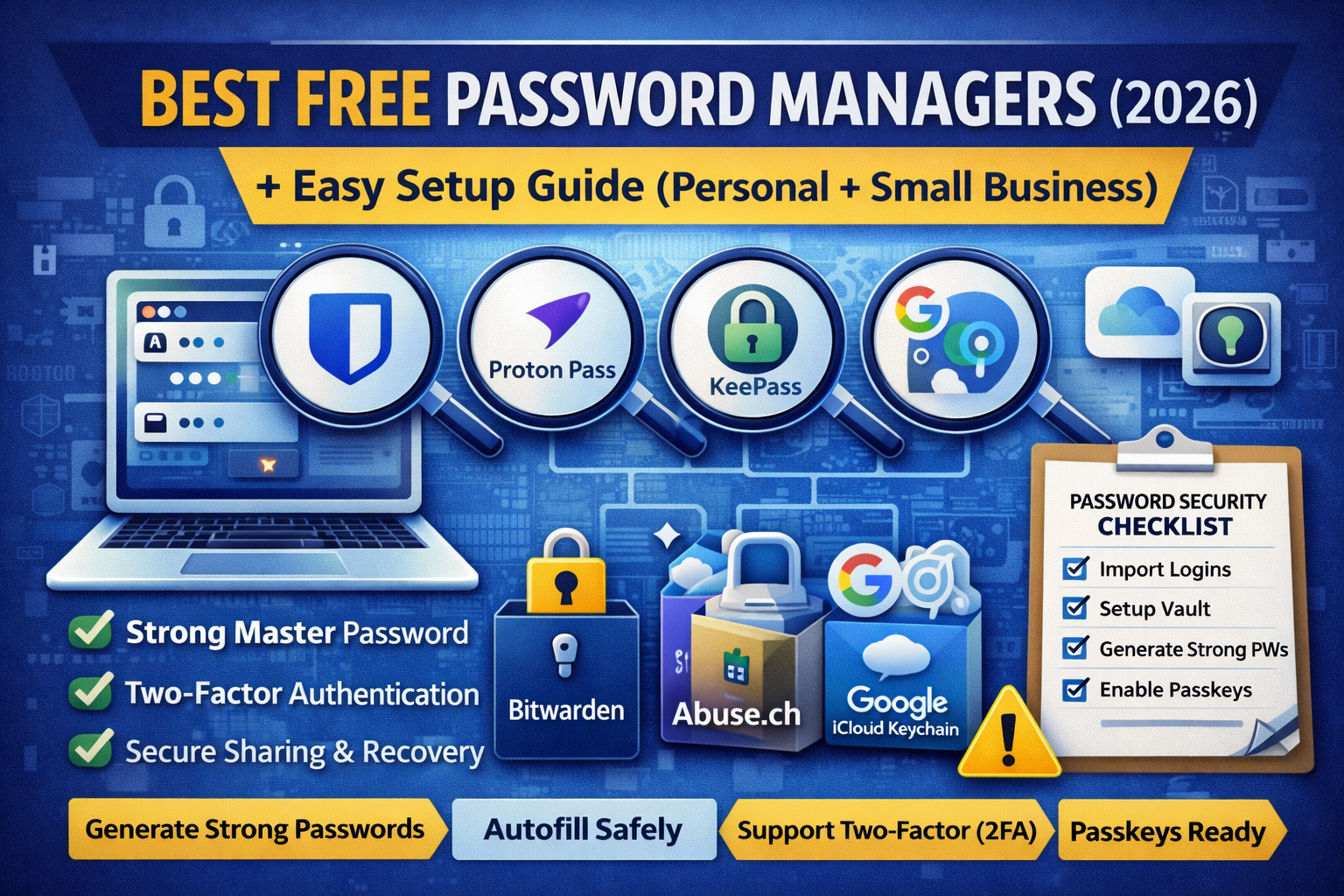
Best Free Password Managers 2026: Setup Guide for Personal and Small Business)
Passwords are still the #1 way accounts get compromised usually because people reuse them or store them in unsafe places. A good password manager fixes that by generating strong passwords, autofilling safely, and warning you about weak/reused logins. In 2026, the best part is: you can get serious protection for free, and you can even start moving toward passkeys (passwordless sign-ins) to reduce phishing risk.
This guides provide you guidence about:
- The best free password managers (ranked by real-world usefulness)
- Which one fits personal use vs small business
- A step-by-step setup (import, vault structure, 2FA, sharing, recovery)
- A quick “done right” checklist so you don’t lock yourself out
What to look for in a “best free password manager” in 2026
A free password manager is worth using when it offers:
- Unlimited passwords + multi-device sync (phone + PC)
- Strong encryption / zero-knowledge (the company can’t read your vault)
- 2FA support (authenticator app or security key)
- Passkey support (optional, but increasingly important)
- Safe sharing (for family or small teams)
- Export option (you can leave anytime)
Best free password managers in 2026 (quick picks)
Best overall free (most people)
Bitwarden (Free plan)
Why: free plan includes core features + works across devices + supports passkeys + sharing with one other user.
Proton Pass (Free plan)
Why: unlimited logins/devices + passkeys + built-in “hide-my-email” aliases (great anti-phishing habit).
KeePassXC / KeePass (local vault)
Why: you control the file; good for high-security users or air-gapped workflows. Tradeoff: setup + syncing is on you.
Best built-in “easy mode” (already on your device)
- Google Password Manager / Chrome (simple, convenient; good for beginners)
- Microsoft Edge Password Manager (good if you live in Edge/Windows)
- Apple iCloud Keychain (best for Apple ecosystem)
Important: Built-in managers can be fine, but dedicated managers usually give better sharing, organization, vault control, and portability.
Comparison table (personal and small business)
Use this to pick in 30 seconds:
| Option | Best for | Free highlights | Weak point |
|---|---|---|---|
| Bitwarden Free | Most people + couples | Unlimited devices/logins, passkeys, core vault features, simple sharing | Some advanced monitoring/enterprise controls are paid |
| Proton Pass Free | Privacy + anti-phishing | Unlimited logins/devices, passkeys, password generator, email aliases, weak/reused alerts | Some advanced “team” controls are paid |
| KeePassXC (local) | Offline/local vault | No cloud dependency; full local control | Harder sync/sharing; more manual |
| Google Password Manager | Beginners already in Chrome | Built-in, passkeys support, easy autofill | Less “team-grade” sharing/features |
Step-by-step setup guide (do this once, be secure for years)
Step 1: Pick a manager and create a strong master password
Your master password is the only password you must remember.
Master password rules (simple + strong):
- 16–24+ characters
- Use a passphrase style: 4–6 random words + a separator
Example pattern:planet-harbor-cactus-velvet-7
Don’t store your master password in notes, screenshots, or email drafts.
Step 2: Turn on 2FA (this is non-negotiable)
Enable two-factor authentication for your password manager account:
- Best: security key (if you have one)
- Great: authenticator app (TOTP)
- Avoid: SMS if possible
Most top managers support “advanced two-step login” options.
Step 3: Import passwords safely (clean up as you go)
If you currently store passwords in Chrome, Edge, or a spreadsheet:
- Export from the old place (temporary file)
- Import into the password manager
- Delete the export file immediately after import
- Empty recycle bin / downloads folder
Pro tip: Do not import old “junk” logins. If you see accounts you don’t use—delete them.
Step 4: Create a clean vault structure (personal + small business)
Keep it simple:
Personal vault folders
- Finance
- Email & Social
- Work
- Shopping
- Devices/Cloud
- Recovery codes
Small business vault folders
- Admin & Hosting (domain registrar, DNS, cloud)
- Email & Collaboration (Google/Microsoft)
- Payments (Stripe/PayPal/etc.)
- Marketing tools (ads, email tools)
- Development (Git, CI/CD)
- Shared “Team” vault (only what people truly need)
Step 5: Generate new strong passwords (fix reuse first)
Your first cleanup mission:
- Change passwords for your email, bank, social accounts, and anything reused
- Use 20+ character random passwords for important accounts
- Turn on “weak/reused password alerts” if your manager supports it
Step 6: Enable passkeys where available (anti-phishing upgrade)
Passkeys reduce phishing risk because they rely on device-based authentication (biometric/PIN) rather than a password you can type into a fake site.
Start with:
- Google account / Microsoft account / Apple ID (where supported)
- Your most important services (banking/email if available)
Best practice: Keep passwords in the manager even when you adopt passkeys some sites still require fallback.
Step 7: Setup safe sharing (family + small business)
For small teams, sharing is where most people mess up.
Golden rule: Share only what someone needs for their job.
Safe sharing patterns:
- Share a login to “Marketing tools” only with marketing role
- Put “Registrar/DNS” in a restricted admin vault
- Use separate accounts when possible (don’t share one “admin” login)
Bitwarden supports a free “organization” style sharing for two people.
Step 8: Add account recovery protections (avoid lockout)
Do these immediately:
- Save backup codes for:
- password manager
- email account
- cloud accounts
- Store backup codes in a secure note (inside the vault)
- Add a recovery email/phone to your main email account
- Consider emergency access features (if your plan supports it)
Small business “minimum standard”
Use this if you’re a service business, agency, or small startup.
- Password manager installed on every device (PC + phone)
- 2FA enabled on the password manager
- Unique passwords for email, hosting, DNS, admin accounts
- Shared vaults separated by role (Marketing / Admin / Dev)
- No shared master passwords
- Backup codes stored in vault
- Passkeys enabled for key accounts where available
Common mistakes that get people hacked (even with a password manager)
Mistake 1: Master password is weak or reused
If attackers guess your master password, the game is over. Make it long and unique.
Mistake 2: Not using 2FA on the manager
This is the easiest “extra lock” you can add.
Mistake 3: Leaving exported password CSV files around
That CSV is basically your entire digital life in plain text. Delete it immediately after import.
Mistake 4: Sharing admin credentials broadly
Instead: role-based vaults + least-privilege access.
FAQ
Are free password managers safe?
Yes if they use strong encryption, have a solid security model, and you protect your vault with a strong master password + 2FA. Many free tiers include core security features.
Which free password manager is best for small business?
If you’re 1–5 people, Bitwarden or Proton Pass are typically the easiest “secure + scalable” starting point, with upgrade paths later.
Do passkeys replace password managers?
Not fully. Passkeys are growing fast and reduce phishing risk, but many services still need passwords and recovery workflows so a password manager remains useful.
About The Author




