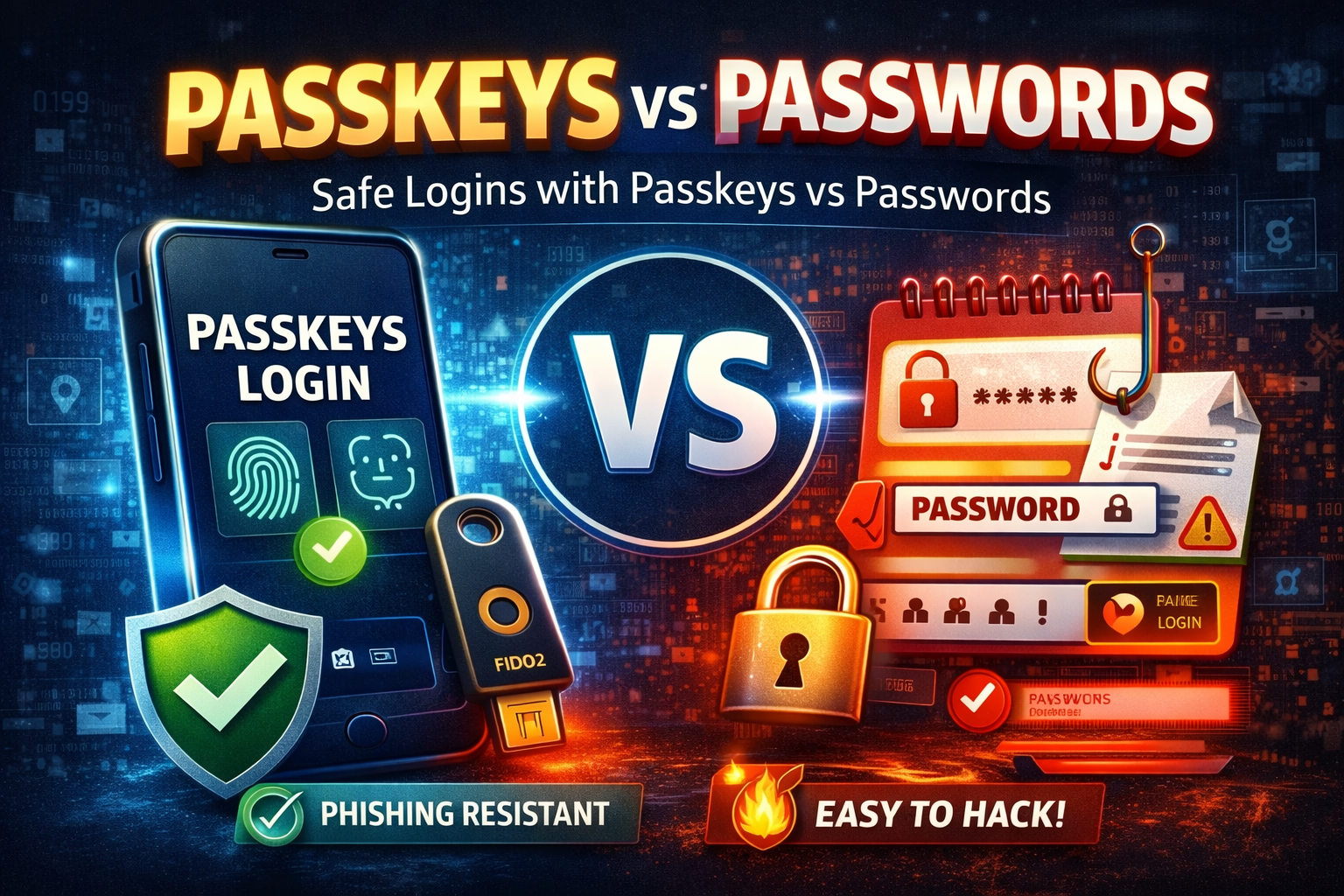
Passkeys vs Passwords: What They Are, How They Work, and How to Set Them Up (2026)
Passwords are one of the biggest reasons accounts get hacked. People reuse them, attackers steal them in data breaches, and phishing pages trick users into typing them. That’s why passkeys are becoming the new standard for safer logins. A passkey lets you sign in using your phone or device security (Face ID, fingerprint, PIN) instead of typing a password—making it dramatically harder for attackers to steal your login.
In this article, you’ll learn what passkeys are, why they’re safer than passwords, how they stop phishing, how to set them up on popular platforms, and what to do if you lose your phone or switch devices.
What Is a Passkey?
A passkey is a modern login method that replaces passwords with cryptographic keys stored on your device (phone, laptop, tablet). When you sign in with a passkey, you confirm it using Face ID, fingerprint, or a device PIN.
Instead of typing a secret (password) into a website, your device proves you own the passkey. That proof cannot be copied easily like a password can.
In simple words:
A password is something you know. A passkey is something your device safely holds, and you unlock it with your fingerprint/Face ID/PIN.
Why Passkeys Are Safer Than Passwords
Passkeys are designed to stop the most common account attacks:
1) Passkeys Reduce Phishing Risk
Phishing works because people type passwords on fake websites. Passkeys don’t work like that. The passkey is linked to the real website/app, so it won’t authenticate on a fake domain.
2) Passkeys Can’t Be “Guessed” or “Brute Forced”
Attackers can brute force weak passwords. Passkeys use strong cryptography, not human-made secrets.
3) Passkeys Protect You From Password Reuse
Even smart users reuse passwords sometimes. Passkeys are unique per site and don’t get reused.
4) Passkeys Reduce Damage From Data Breaches
When a website leaks passwords, attackers use those leaked passwords everywhere. With passkeys, there is no password to leak in the same way.
Passkeys vs Passwords vs 2FA
Passwords
✅ Easy to understand
❌ Can be stolen, reused, phished, leaked, guessed
Password + 2FA (MFA)
✅ Much better than passwords alone
❌ Still phishable in some cases, and SMS codes are weaker
Passkeys
✅ Strong phishing resistance
✅ No password to type or reuse
✅ Very fast login
⚠️ Requires device management (phone/laptop) and backup planning
How Passkeys Work?
When you create a passkey for a website:
- Your device generates two keys: Public key and Private key
- The website stores the public key
- Your device keeps the private key securely
- When you sign in, the site challenges your device
- Your device signs the challenge using the private key
- The site verifies it using the public key
Your private key stays on your device, not on the website.
Are Passkeys Safe If My Phone Gets Stolen?
Yes—because the passkey still requires your device unlock method:
- Face ID / fingerprint
- Device PIN
If someone steals your phone but cannot unlock it, they cannot use your passkeys.
Important: You should still secure your phone with:
- Strong device PIN (not “1234”)
- Biometric lock
- Find My Device / remote wipe enabled
What Happens If I Lose My Phone?
This depends on how your passkeys are stored.
If You Use iPhone (iCloud Keychain)
Passkeys can sync across Apple devices signed into your Apple ID (if enabled). Losing your phone doesn’t automatically mean losing access, as long as you can recover your Apple ID.
If You Use Android (Google Password Manager)
Passkeys can sync with your Google account (if enabled). You can restore them on a new Android device when you sign in.
If You Use a Security Key (Hardware Key)
Your passkeys stay on the key. If you lose it, you’ll need backup login methods.
Best practice: Always keep at least one backup option:
- Another passkey on a second device
- A security key backup
- Recovery codes (stored offline)
How to Set Up Passkeys (Step-by-Step)
Before You Start (Do This First)
- Update your phone and browser
- Turn on screen lock (Face ID / fingerprint / PIN)
- Make sure your Google account / Apple ID is secure (MFA enabled)
How to Enable Passkeys on Google (Gmail)
- Open your Google Account settings
- Go to Security
- Find Passkeys (or “Sign-in method”)
- Choose Create a passkey
- Confirm with Face ID / fingerprint / device PIN
- Save changes and test login
Tip: After enabling passkeys, keep your recovery email and phone updated so you don’t lose access.
How to Enable Passkeys on Microsoft (Outlook / Microsoft Account)
- Go to your Microsoft account security settings
- Look for Passkeys (or “Sign-in options”)
- Choose Add a passkey
- Confirm using your device authentication
- Test sign-in on a new browser/device
How to Use Passkeys on Social Media (Facebook / Instagram / X / LinkedIn)
Many platforms are gradually expanding passkey support, so you may see different names like:
- “Passkeys”
- “Passwordless login”
- “Secure sign-in”
If your app supports passkeys:
- Open app settings
- Go to Security
- Enable passkeys / passwordless login
- Confirm with Face ID / fingerprint
- Keep recovery methods updated
If you don’t see passkeys yet, enable strong MFA with an authenticator app and keep a password manager.
Best Practices: Use Passkeys the Smart Way
1) Keep MFA Enabled Where Possible
Passkeys are strong, but layered security is still valuable for high-risk accounts.
2) Use a Password Manager for Accounts Without Passkeys
Not every site supports passkeys yet. A password manager helps you use long unique passwords safely.
3) Add More Than One Passkey (Backup Device)
If possible:
- Add a passkey on your phone
- Add a passkey on your laptop
- Or keep a security key as backup
4) Save Recovery Codes Offline
For your email accounts especially:
- Download recovery codes
- Store them offline (not in the same email inbox)
5) Lock Down Your Email First
Your email controls password resets for everything else. Use passkeys + MFA on email before anything else.
Common Passkey Problems (And Fixes)
“My passkey isn’t showing up”
- Update browser and OS
- Make sure screen lock is enabled
- Ensure passkey sync is enabled in your device settings
“Passkeys work on phone but not on PC”
- You may need Bluetooth enabled for cross-device authentication
- Try a modern browser (Chrome/Edge/Safari)
- Make sure you are signed into the same Google/Apple account if syncing
“I’m locked out after switching phones”
- Use account recovery steps (recovery email/phone)
- Restore passkeys by signing into your Google/Apple account
- Use backup security key or recovery codes
Should You Remove Passwords After Enabling Passkeys?
Not always. Many platforms still keep passwords as a fallback. The safer approach is:
- Enable passkeys
- Keep a strong unique password in a password manager
- Enable MFA
- Remove weak fallback methods (like SMS when possible)
If the platform allows removing passwords safely, only do it after you confirm:
- You have passkeys on more than one device, or recovery methods are strong
- You can still recover access if you lose your phone
Passkeys Security Checklist
- ✅ Enable passkeys on email first
- ✅ Use Face ID / fingerprint + strong device PIN
- ✅ Turn on Find My Device / remote wipe
- ✅ Add a second passkey (backup device)
- ✅ Keep recovery email/phone updated
- ✅ Store recovery codes offline
- ✅ Use a password manager for non-passkey sites
- ✅ Remove unknown devices and sessions regularly
About The Author




